
Android can continue a file transfer with the screen off, but an app needs more than a visible transfer notification. The transfer task must remain active, the CPU must be available to process its work, and the connection to the other device must survive. A failure in any of those can leave the receiver waiting.
That is why a transfer which works while you watch it may stall after you press the power button. Screen-off exposes several possible problems; it does not identify one on its own. This article explains those mechanisms for local phone-to-phone transfers and a phone serving files to a computer browser.
Three controls with different jobs
Android has separate controls for keeping an app's work active, keeping the CPU awake and keeping the display lit. Treating them as interchangeable produces misleading claims about background transfers.
| Control | What it is used for | What it does not establish |
|---|---|---|
| Foreground service | Run an ongoing task that the user is aware of | That the CPU will remain awake whenever the screen is off |
| Partial wake lock | Keep the CPU available for work while the display can be off | That the network or the other device is still available |
| Keep-screen-on flag | Prevent the visible activity's screen from timing out | That the task can continue after the app goes into the background |
Android's own explanation of foreground services and partial wake locks makes the distinction explicit: a foreground service does not automatically prevent CPU sleep.
The keep-screen-on flag applies to an activity's visible screen. Once the app is in the background, Android can let the display turn off. It is useful while someone is reading connection instructions, but it is not a replacement for managing the transfer task.
Why a foreground service is only part of the answer
A local sharing session may need to keep accepting data after its progress page is no longer visible. On Android, the page is an Activity or Fragment; its lifecycle does not have to determine the lifetime of that session. If an app ties its network cleanup directly to the page disappearing, pressing Home can end work that the user expected to continue.
ShareGo's reviewed Android implementation establishes foreground-service protection before starting its mobile transfer session or computer connection resources. It uses the connectedDevice service type. Android defines that type for interaction with external devices over connections that include a network. See foreground service types.
The service gives the ongoing connection a lifecycle outside the visible page. It still does not supply the CPU protection needed to read a source file, process incoming bytes or finish a save. That is a separate responsibility.
Returning to the ShareGo home screen
On Android, ShareGo can minimize a phone-to-phone session into a small card while you use other screens in the app. The capture below shows Connected above the bottom navigation. Tap the card or its upward arrow to return to the session.
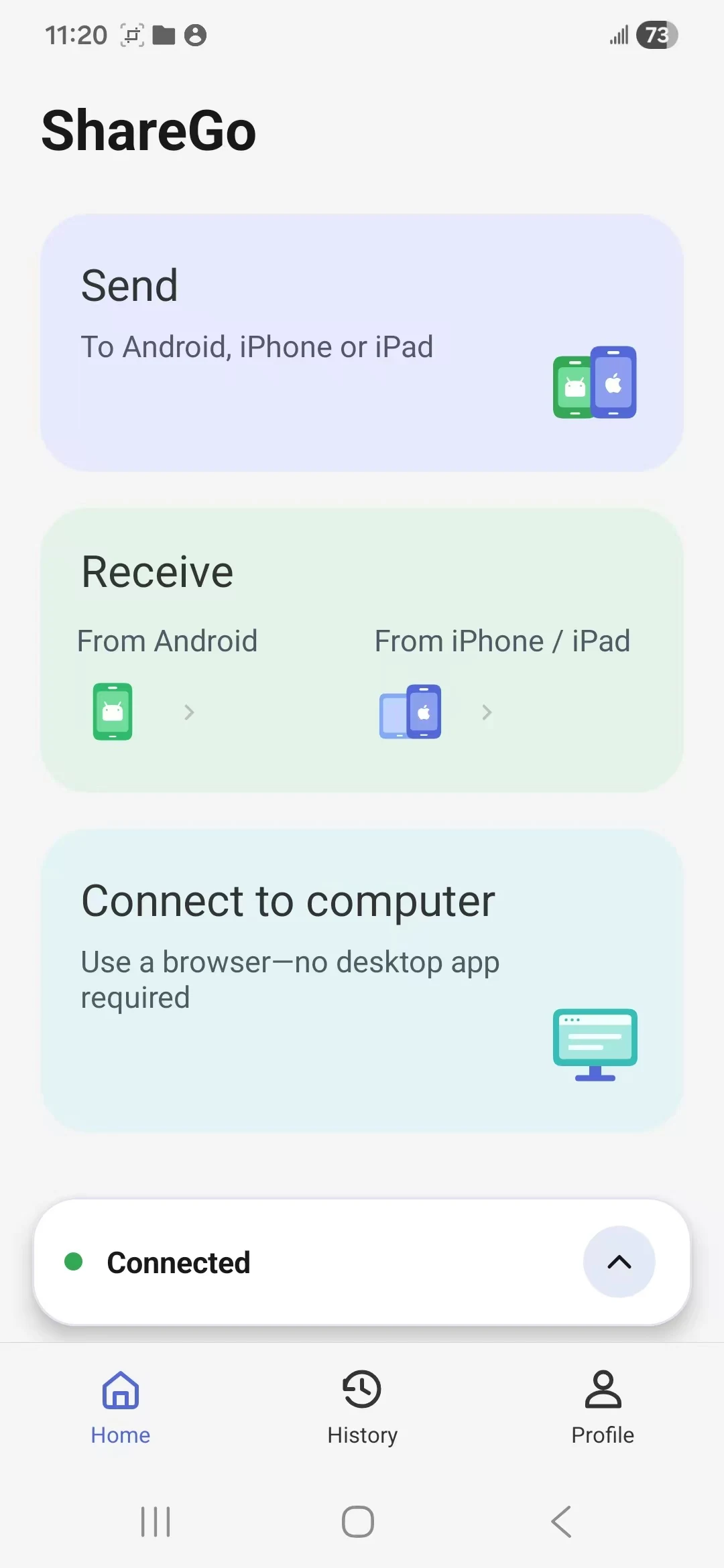
A minimized phone-to-phone session on the ShareGo Android home screen. The card shows the connection state; it is not a system notification or confirmation that every file has finished.
Minimizing the session keeps it available without leaving its progress page open. ShareGo is still visible in this screenshot, so this demonstrates navigation within the app. Continuing after switching apps or locking the phone also depends on execution and power management.
How ShareGo limits CPU wake locks to transfer work
ShareGo's Android implementation uses a partial wake lock for actual work in both phone sharing and computer-browser transfers. Work is tracked through sending, receiving and the necessary final steps, such as saving results and making received media discoverable.
Consider two videos arriving together. The first can finish transferring while its media scan is still pending and the second video is still being written. Releasing protection simply because the first progress bar reached the end would overlook both remaining operations. ShareGo tracks their lifetimes separately and releases the lock when no work still needs it.
The lock also has a timeout. Real progress can renew protection; a stalled operation cannot keep it alive indefinitely just by waiting. An idle connection screen does not repeatedly request a CPU wake lock. This leaves a distinction between keeping a session open for the user and continuously keeping the processor awake.
That limit matters for battery use. Android's wake-lock guidance recommends holding a lock only as long as necessary and choosing other APIs when they already provide the required behavior.
These details describe the implementation reviewed on October 2, 2026. They do not establish how long every handset will continue a locked-screen transfer, or prove identical behavior across manufacturers and store versions.
Screen-off does not immediately mean Doze
Doze is an Android power-saving state with its own entry conditions and restrictions. Turning the display off is not evidence that the device has already entered it. Android's Doze documentation describes restrictions on network access and wake locks, along with exceptions. Holding a wake lock is therefore not a universal bypass for power management.
There is another layer: restrictions applied to the individual app. Android documents that a user-restricted app can lose the ability to run in the background, and that the precise restrictions depend on the manufacturer. See background optimization.
For diagnosis, timing is useful evidence. Record whether progress stopped as soon as the screen went dark, after a longer idle period, or only after changing apps. That observation helps distinguish cases, but it is not enough to identify an OS power state without further evidence. Do not change every battery setting before checking which device actually lost the session.
The other device can still break the transfer
Foreground-service and CPU protection apply to the Android app. They cannot keep another phone running, restore a hotspot that has stopped, or preserve a connection after either device changes networks.
In an Android-to-iPhone transfer, the Android host can remain active while the iPhone stops responding in the background. The host may then show the other phone as disconnected. That is a different failure from Android terminating the host. The iPhone background-execution article explains that side of the connection.
For ShareGo's computer-browser connection, the computer must remain on the same Wi-Fi or the Android hotspot chosen for the session. A notification on the phone does not prove that a particular browser request completed. Likewise, a service cannot make an active transfer survive a force stop of the app.
If a transfer has failed, bring ShareGo back into view, confirm which devices are still connected, and check the received files before retrying. The interrupted-transfer guide walks through that recovery. For a repeatable screen-off failure, include the phone model, Android and app versions, connection method and the point where progress stopped in a support report.
ShareGo is available for Android and iPhone from the download page. Background protection supports its local transfers; it does not change the requirement for a working connection at both ends.
Based on a review of ShareGo’s implementation. Menus and available options can vary with your app and system version.
Our editorial approach·Report a correction