
To transfer files between your phone and computer with ShareGo, install the app on your phone and open Connect to computer. Your computer connects through its browser: there is no desktop app to install. After you approve the connection on your phone, you can download files to the computer or upload files to the phone.
On iPhone and iPad, both devices use the same Wi-Fi. Android also supports this method. If your phone and computer are already on the same Wi-Fi, keep that connection and open the address shown in ShareGo. There is no extra hotspot to join. Android also offers a separate Use phone hotspot option.
Before you connect
Get ShareGo for your phone if you have not installed it yet. Have your computer nearby, with a browser open, and enough storage on the device receiving the files. Finish any active phone-to-phone transfer before starting browser access.
Follow the permission prompts in the app. Android uses All files access for browsing shared storage; creating a hotspot can also require Nearby devices or location permission. On iPhone and iPad, photo access determines which photos and videos ShareGo can show. These are different permissions from approving a computer connection.
Choose the instructions for your device:
Connect an iPhone or iPad
- Check that your iPhone or iPad and computer are on the same Wi-Fi network. If they already are, leave both connected.
- Open ShareGo and tap Connect to computer. Complete any setup prompts in the app.
- Wait for Waiting for connection. Expand Computer connection steps if the address is hidden.
- On the computer, enter the complete address shown by ShareGo into your browser's address bar. Include the
http://prefix and the port number after the colon. - Return to your phone to approve the computer, as described below.
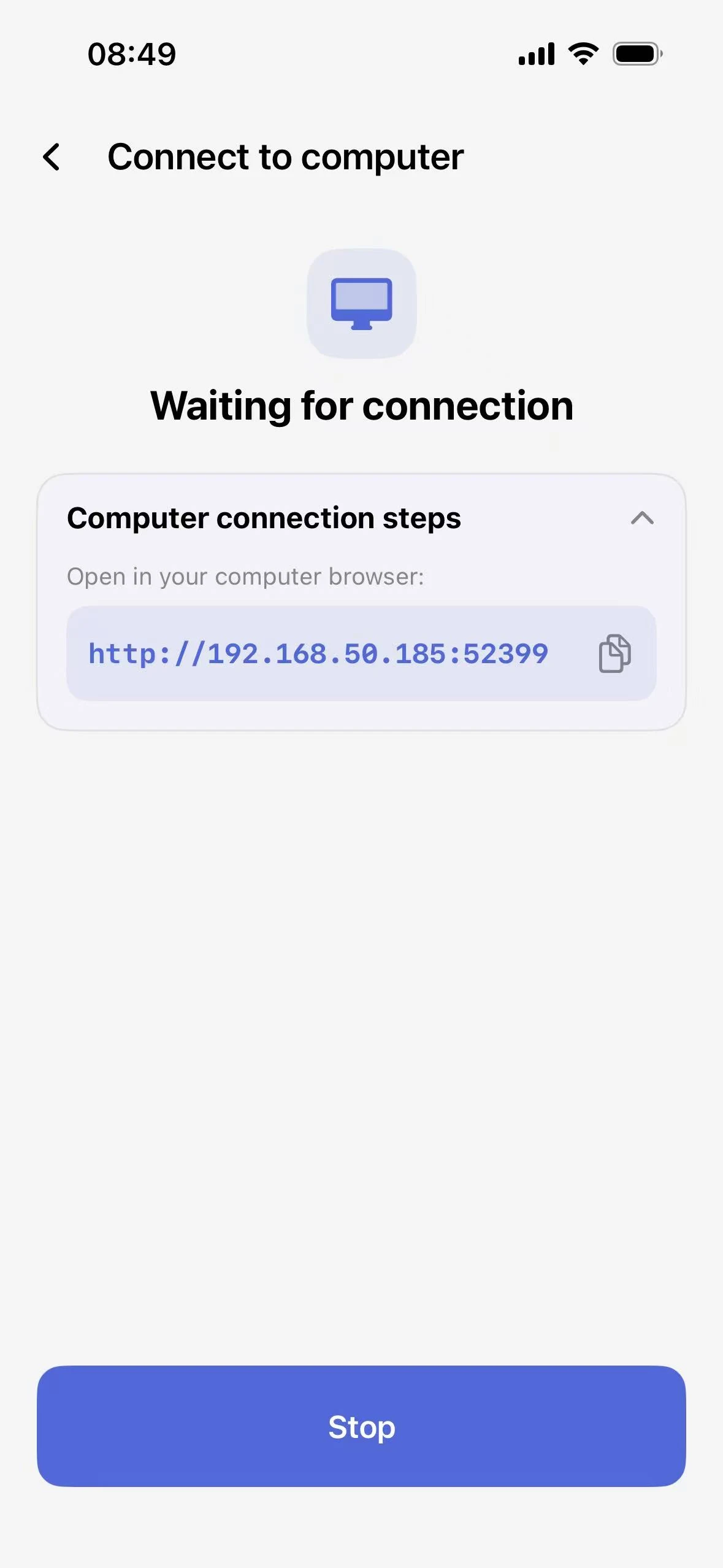
Same-Wi-Fi connection on iPhone: open the displayed address on the computer while both devices stay on their existing Wi-Fi. Use the address on your own device; this screenshot is only an example.
Keep ShareGo open while connecting and transferring, and leave both devices on that Wi-Fi network.
Connect an Android phone
Open ShareGo and choose Connect to computer. Select the connection method that fits your setup.
Use the same Wi-Fi
- Check that your Android phone and computer are on the same Wi-Fi network. If they already are, leave both connected.
- In ShareGo, choose Use the same Wi-Fi and complete any setup prompts.
- Wait for the connection address to appear under Computer connection steps.
- Enter that complete address in the computer's browser, then approve the request on your phone.
Use phone hotspot
Choose this alternative when you want the computer to connect to a hotspot created by ShareGo. It is a separate connection method, not an additional step after Use the same Wi-Fi.
- Choose Use phone hotspot in ShareGo and allow the permissions requested for creating it.
- Wait for the app to display a Wi-Fi name, password, and browser address.
- Open your computer's Wi-Fi settings. Join the hotspot shown in ShareGo using the password displayed on your phone.
- Once the computer has joined, enter the app's current address in its browser. Then approve the connection on your phone.
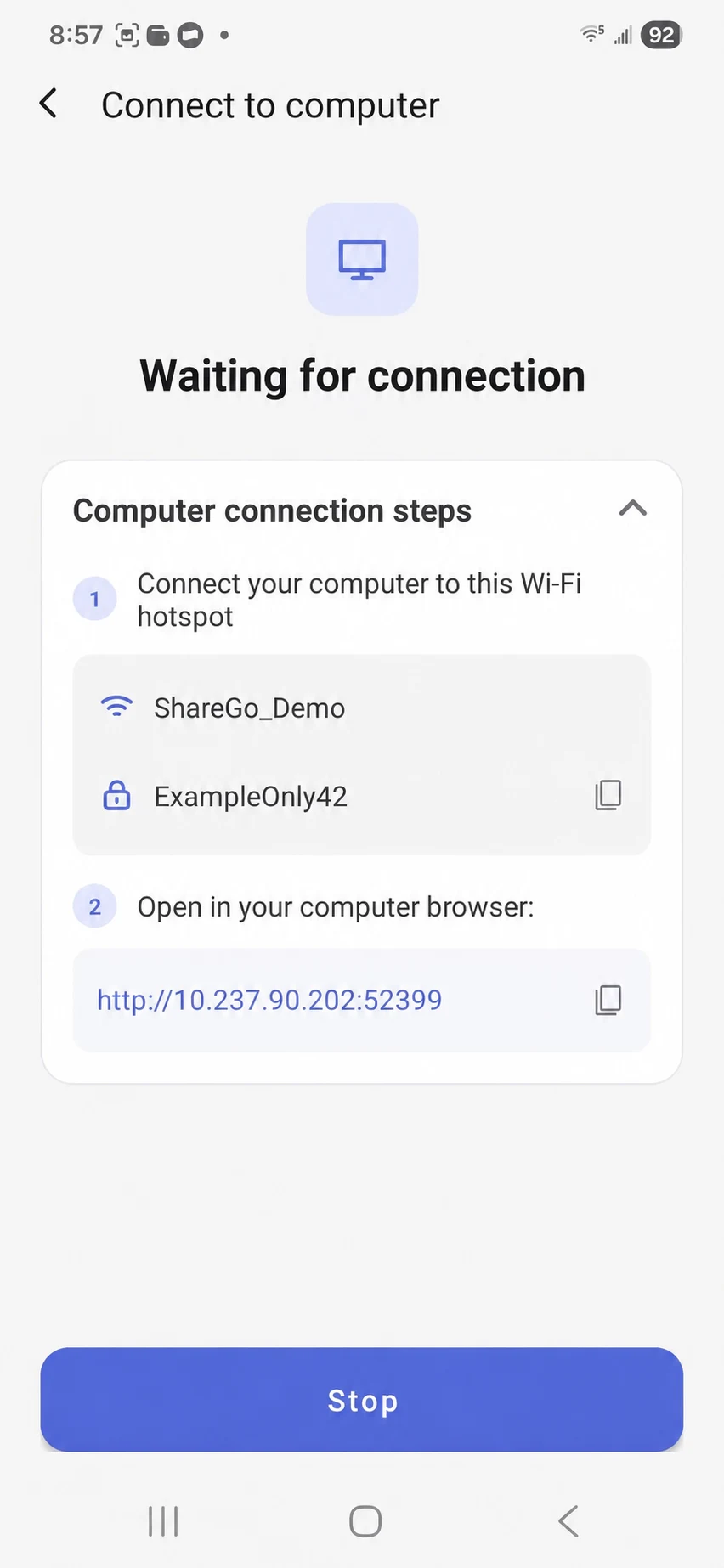
Android hotspot setup: join the displayed network first, then open the browser address. The network name and password in this image have been replaced with examples.
Use the hotspot created inside ShareGo for this flow. If you switch from the same-Wi-Fi method to the hotspot method, read the address again: the old address may no longer apply.
Allow the computer on your phone
Opening the address is not the final step. The browser may show Confirm on your phone while ShareGo asks Allow this computer?
Check that the request is from the browser you just opened. Tap Allow on iPhone or iPad, or Allow access on Android. Wait until the browser shows Connected before choosing files. Reject a request you did not initiate.
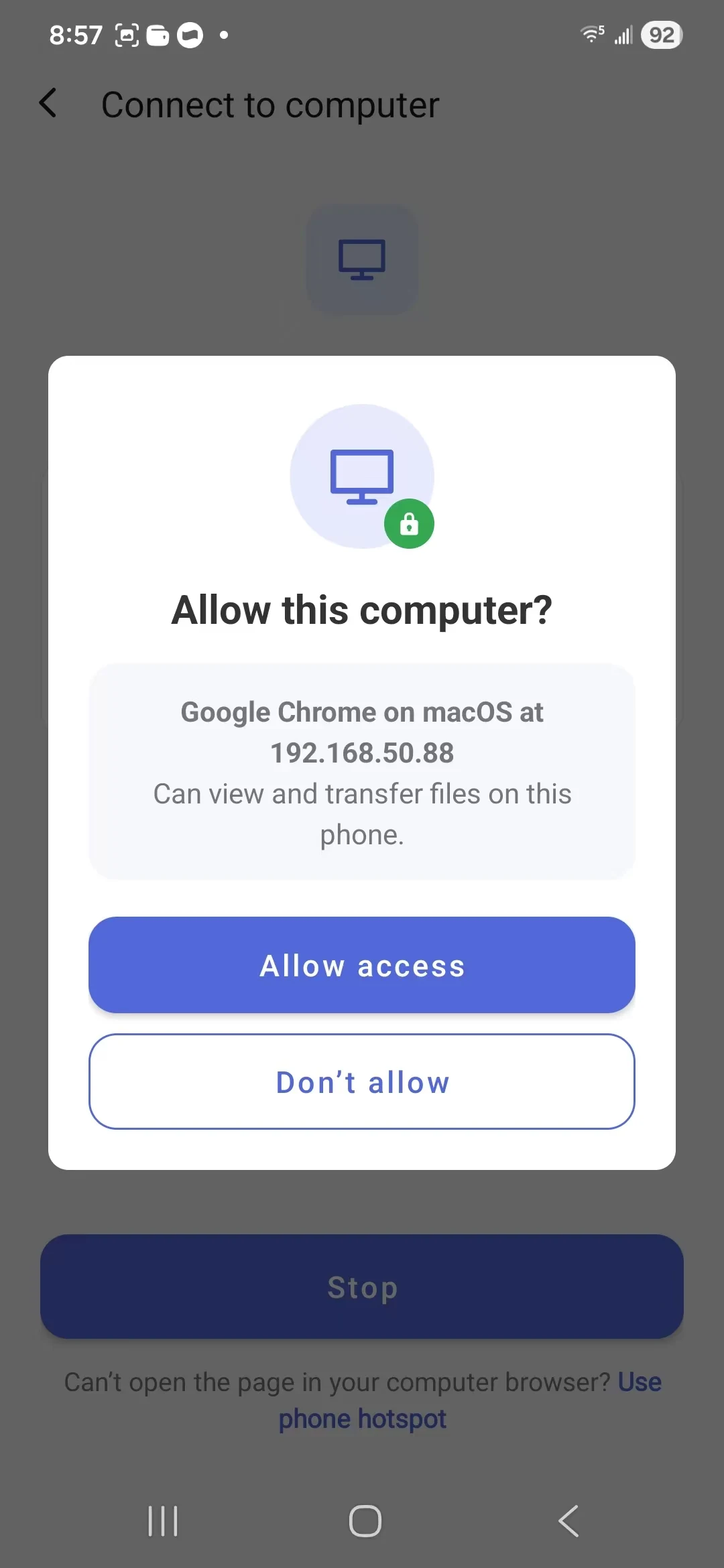
The Android approval prompt identifies the browser and explains that it can view and transfer files. iPhone and iPad also require approval on the device.
The transfer page is served by your phone at the address shown in the app. Visiting sharego.io on your computer opens this website, not your phone's file list.
Download to the computer or upload to the phone
Phone to computer: choose a category in the browser, find the file, and click Download. Check the browser's downloads list for progress and the saved location.
Computer to phone: click Select files to upload, or drag files into the upload area. Wait for the upload to finish, then check the received content on your phone.
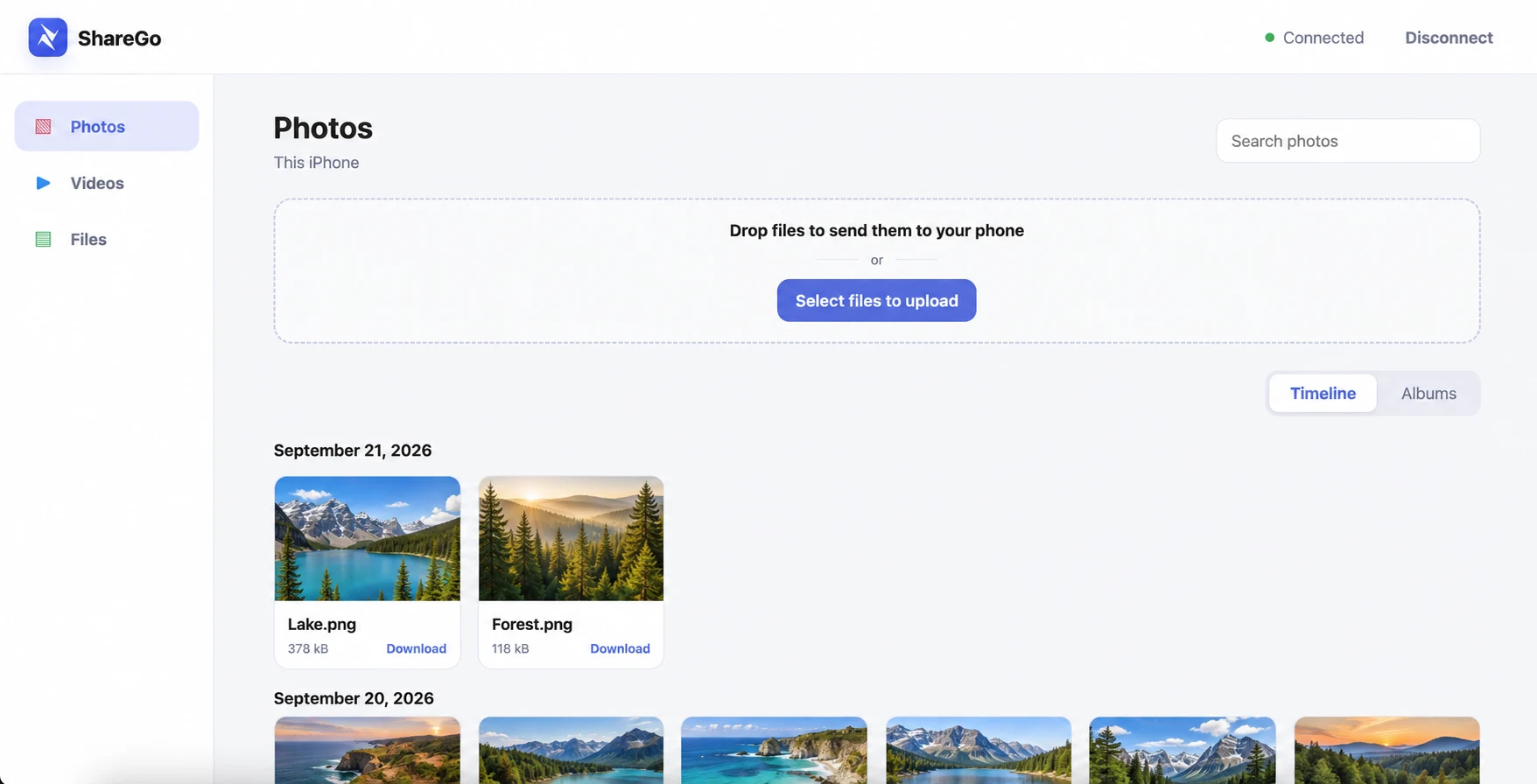
The computer browser connected to an iPhone. Uploads go to the phone; each Download action saves a phone item to the computer. Landscape previews and example filenames replace personal content.
The browser can show Photos, Videos, and Files for an iPhone or iPad; Android also supports Music. Available categories and items depend on the phone’s permissions. On iOS, Files does not provide unrestricted access to other apps' private documents. If expected media is missing, check ShareGo's file and photo permissions.
Start with one small file in each direction you need. Open the received copy before sending a larger batch, and keep the originals until you have checked the result.
Finish or reconnect
Wait for active transfers to finish. To end browser access, tap Stop in ShareGo. Treat an explicit Stop or confirmed session exit differently from switching apps or locking the screen: moving into the background does not itself mean the session has been closed.
If a browser transfer stalls after the phone locks, return to ShareGo and check its current connection state. On iPhone and iPad, background execution is limited. If the server and network survived, the existing browser session may remain usable; if the server restarts or the network changes, use the current address and approve the browser again when asked. A failed upload is not automatically sent again. Check the received result before retrying.
Android uses foreground-service and CPU wake protection for ongoing work, but network changes, app restrictions or a force stop can still interrupt it. For the underlying mechanisms, see iPhone background limits and Android screen-off transfers.
If the page does not open, check these three things first:
- The computer is on the same Wi-Fi as the phone, or has joined the hotspot displayed by ShareGo.
- The browser address matches the app, including the prefix and port. Enter it in the address bar, rather than a search box.
- ShareGo is still showing an active connection screen. After changing networks or restarting the session, use the newly displayed address.
On Android, Use phone hotspot is another connection option if the same-Wi-Fi method does not work. On iPhone or iPad, keep both devices on the same Wi-Fi and restart the connection in ShareGo.
For sharing between two phones instead, follow the Android and iPhone transfer guide.
Based on a review of ShareGo’s implementation. Menus and available options can vary with your app and system version.
Our editorial approach·Report a correction