
When a transfer stops, first check the item’s result on both phones. Keep the original file. If the receiver already has a complete, usable copy, sending it again may create a duplicate; if the item is incomplete, restore the connection before retrying.
Read the item result, not just the progress bar
A progress bar describes one part of an operation. Preparing a source, transferring its bytes, and committing the received file can finish at different times. Check the final item status and try opening the received file from the destination’s history or file view.
For a batch, some items may have completed before the connection ended. Identify those items before resending the whole selection. See finding received files if the result is not visible in the system gallery.
Decide what needs retrying
| Result on the receiving phone | Next step |
|---|---|
| The file opens and is complete | Keep that copy and retry only the remaining items. |
| The item failed or will not open | Check the connection and storage, then retry the file. |
| The file is present in ShareGo but absent from Photos | Check the import result using the received-files guide. |
| The selected Android SD card is unavailable | Reconnect the card or choose an available receiving location before retrying. |
Keep the connection steady
Bring the phones close together, keep Wi-Fi on, and leave both ShareGo sessions open. Check whether either phone changed networks, the hotspot stopped, or a user explicitly disconnected.
Switching to a network with internet access can end the local connection used for sharing. An internet warning on a local network is not, by itself, a reason to switch. Reconnect through a fresh ShareGo invitation if the original network is no longer active.
Bring ShareGo back to the foreground
Bring ShareGo to the foreground on both phones and check the current session. A Wi-Fi connection can survive while the app stops processing a transfer, so the Wi-Fi icon alone is not enough to confirm that the session is usable.
ShareGo's background handling differs by platform. On iPhone, additional execution time is finite; on Android, a foreground service and CPU wake protection handle different parts of the task. The technical explanations cover iPhone transfers after screen lock and Android transfers with the screen off. Neither approach guarantees that a transfer will survive every interruption.
Do not force-close the app during an active transfer. On Android, look at any system battery-management prompts that specifically affect ShareGo. Keep changes limited to the permission or setting involved; changing many settings at once makes a repeated problem harder to diagnose.
When the joining phone locks or goes to the background
Before checking the iPhone panel, look at the Android host. If Android is still waiting for a connection but lists the iPhone as having left, the host session may still be available. Bring the iPhone back into ShareGo and check whether it reconnects. Use the host's current invitation if it does not.
The earlier capture below shows one such interruption: Android has returned to Waiting to connect, the iPhone is listed as having left, and the unfinished file shows Transfer failed. It illustrates the visible failure state, not a prediction that every screen lock will disconnect the current app.
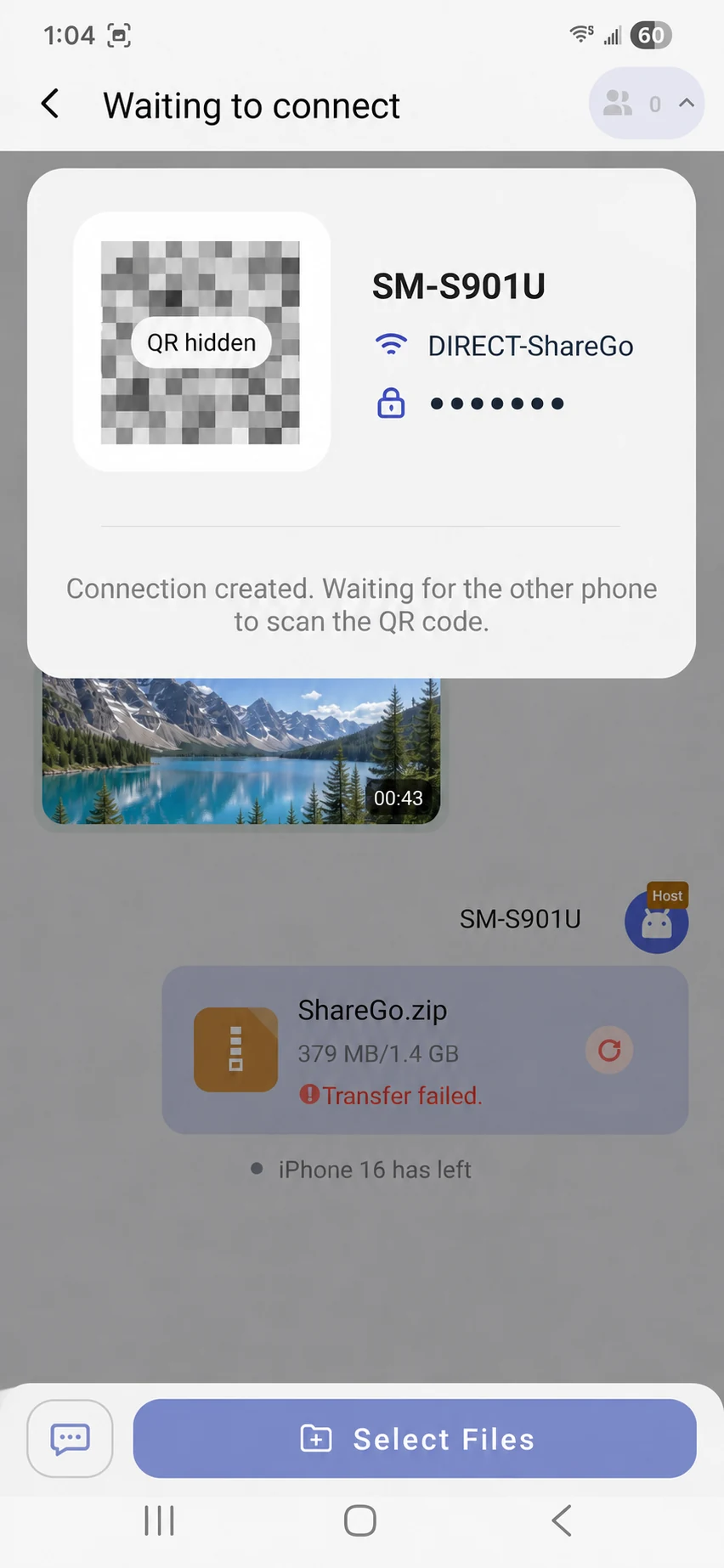
Captured before the October background-handling review: Android is still waiting after the joining phone locked or moved to the background. The QR code and network credentials are hidden or replaced, and the video preview is a sample landscape.
Unlock the joining phone and bring ShareGo back to the foreground. Restore the connection using the host’s current invitation if needed, then retry the failed item. Check received files first so that you do not resend items that already arrived.
Recognize the two iPhone disconnection states
Trying to reconnect means ShareGo is attempting to restore the connection. Keep the app open. If iOS asks to join the host’s network during this attempt, tap Join to continue connecting to the other phone.
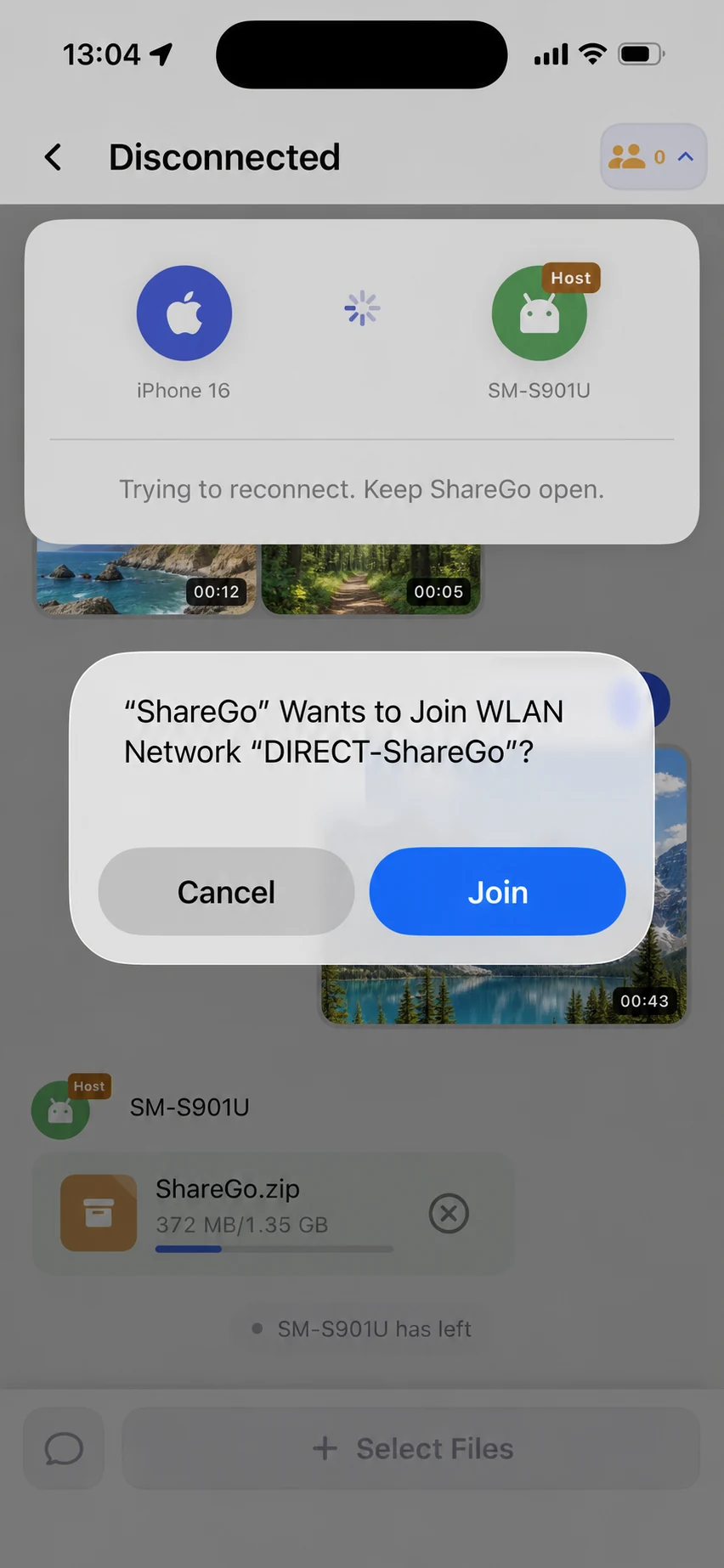
A reconnection attempt with the iOS network prompt. The network name is an example and personal thumbnails are replaced with landscapes.
Host left is a different state. In the screenshot below, the Android host has left and ShareGo offers Reconnect. Open the host’s current invitation, tap Reconnect on iPhone, and scan the host’s QR code again.
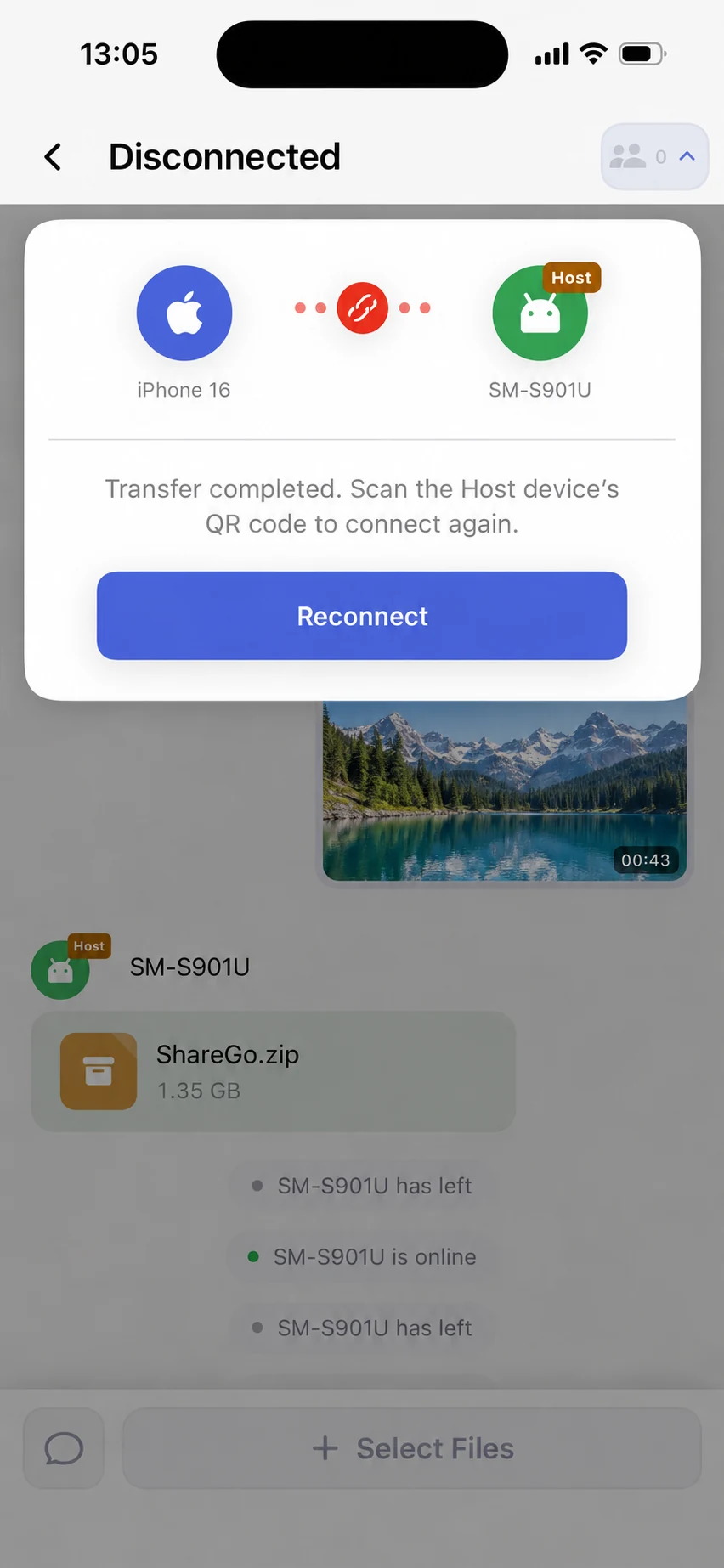
The host has left the session. The panel asks you to scan again; it is not the active reconnection spinner. Landscape previews replace personal thumbnails.
Check History before resending anything. A disconnection does not mean every file failed, and restoring the connection does not by itself confirm that an unfinished file has completed.
Check destination storage and source availability
The receiver needs working free space, not just a total capacity that sounds large enough. Leave room for temporary writes and normal system activity. If you need to free space, remove files you have already backed up rather than the only source of the transfer.
On the sender, check that the chosen file is still available. Moving, deleting, or revoking access to the source can interrupt an operation even if the wireless link is healthy. For cloud-backed content, confirm the source has finished downloading to the device.
Retry the smallest useful case
Once both devices are ready, try one small file. If that completes, retry only the items that failed. A retry may start the file again. Leave the original in place until the received copy opens successfully.
If even the small file cannot begin, return to connection troubleshooting. If it works but large files repeatedly stop, record the file size, available destination storage, and whether the app stayed in the foreground.
A useful support report describes the last visible state and what changed just before the interruption. Include the error message and app versions, without attaching private files or live connection codes.
Based on a review of ShareGo’s implementation. Menus and available options can vary with your app and system version.
Our editorial approach·Report a correction