
On Android, received files go into the ShareGo folder on the selected storage volume. On iPhone and iPad, ShareGo tries to add received photos and videos to Photos. Documents stay in ShareGo, as do media files that could not be added to the photo library.
If you are unsure whether a file arrived, open History on the receiving phone first. Check the received entry and the result for that file.
Where to look first
| Received content | Location |
|---|---|
| Android photos | ShareGo/photos on the selected storage volume |
| Android videos | ShareGo/videos on the selected storage volume |
| Android music and other files | ShareGo/music or ShareGo/files, depending on the file type |
| iPhone or iPad photos and videos | Photos, when the library import succeeds |
| iPhone or iPad media that could not be added to Photos | ShareGo app storage; check History and Settings → Storage & Files |
| iPhone or iPad documents | ShareGo app storage; open Settings → Storage & Files |
These locations describe the current implementation. Older app versions may use different menus or storage rules.
Find the item on Android
- Open History in ShareGo on the receiving phone.
- Find the received transfer and open the file from its entry.
- To browse outside ShareGo, open your phone's file manager and look for the ShareGo folder in the storage location selected for receiving.
- Open the matching subfolder, such as videos or photos.
The storage volume can be internal storage or a selected removable card. If you chose an SD card, check that card rather than the internal-storage folder. An unavailable selected card can also prevent a new file from being saved.
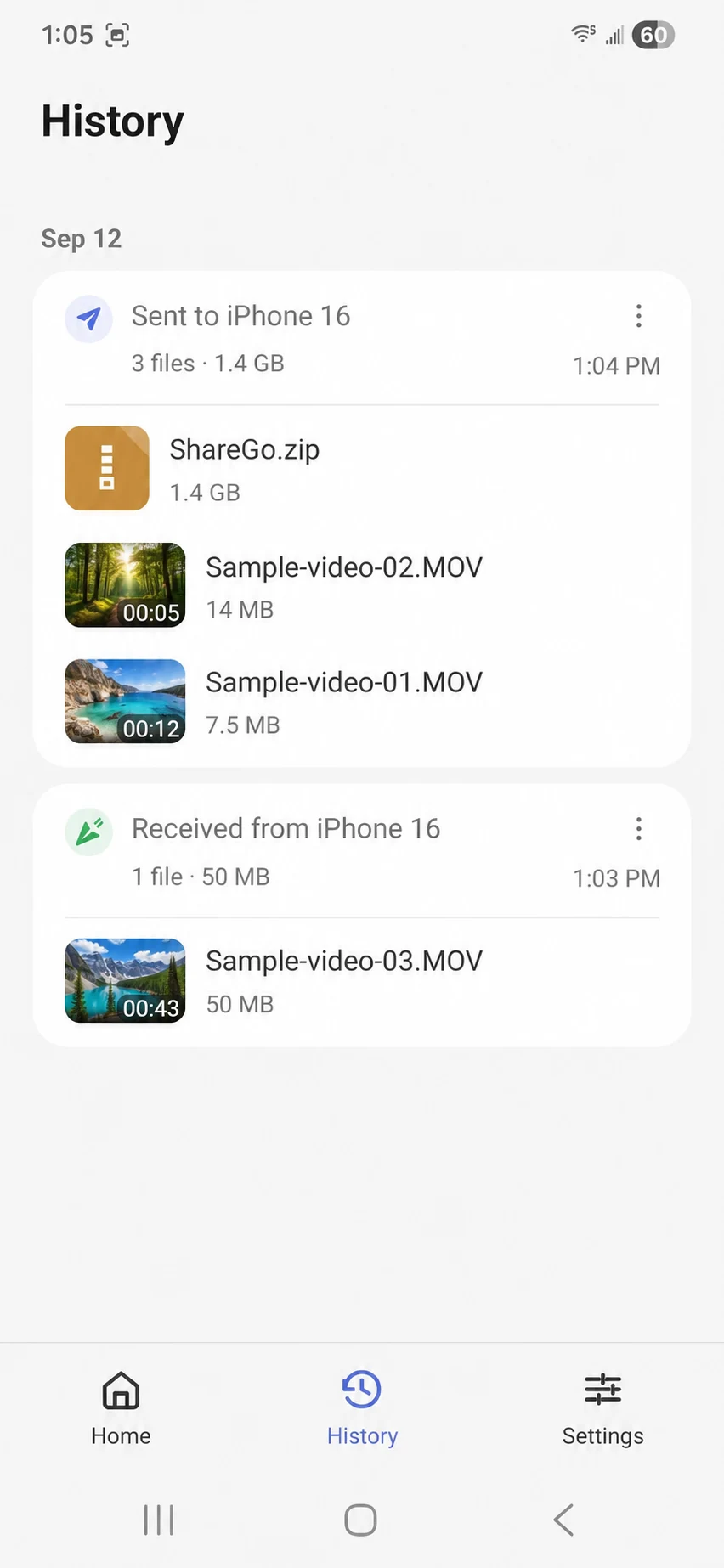
Android History separates sent and received groups. The received item is in the lower group here. Video previews and filenames have been replaced with examples.
If the file opens from History but is absent from a gallery app, check its format and reopen the gallery. Gallery indexing can lag behind saving, so sending another copy may just create a duplicate.
Find the item on iPhone or iPad
For a received photo or video, check Photos. ShareGo attempts the library import during receipt; you do not normally need to export each successfully imported item yourself. The media's original capture date may place it earlier in the library than expected.
If Photos access is denied or the media cannot be imported, ShareGo attempts to keep the file in its own storage instead. Check the received item in History, or open Settings → Storage & Files inside ShareGo. A storage warning can mean the file arrived but was not added to Photos.
Documents and other files remain in app storage. In Storage & Files, open a file to preview it or select it for export to another app or location. Files received as a collection may also stay in app storage rather than appear as individual Photos items.
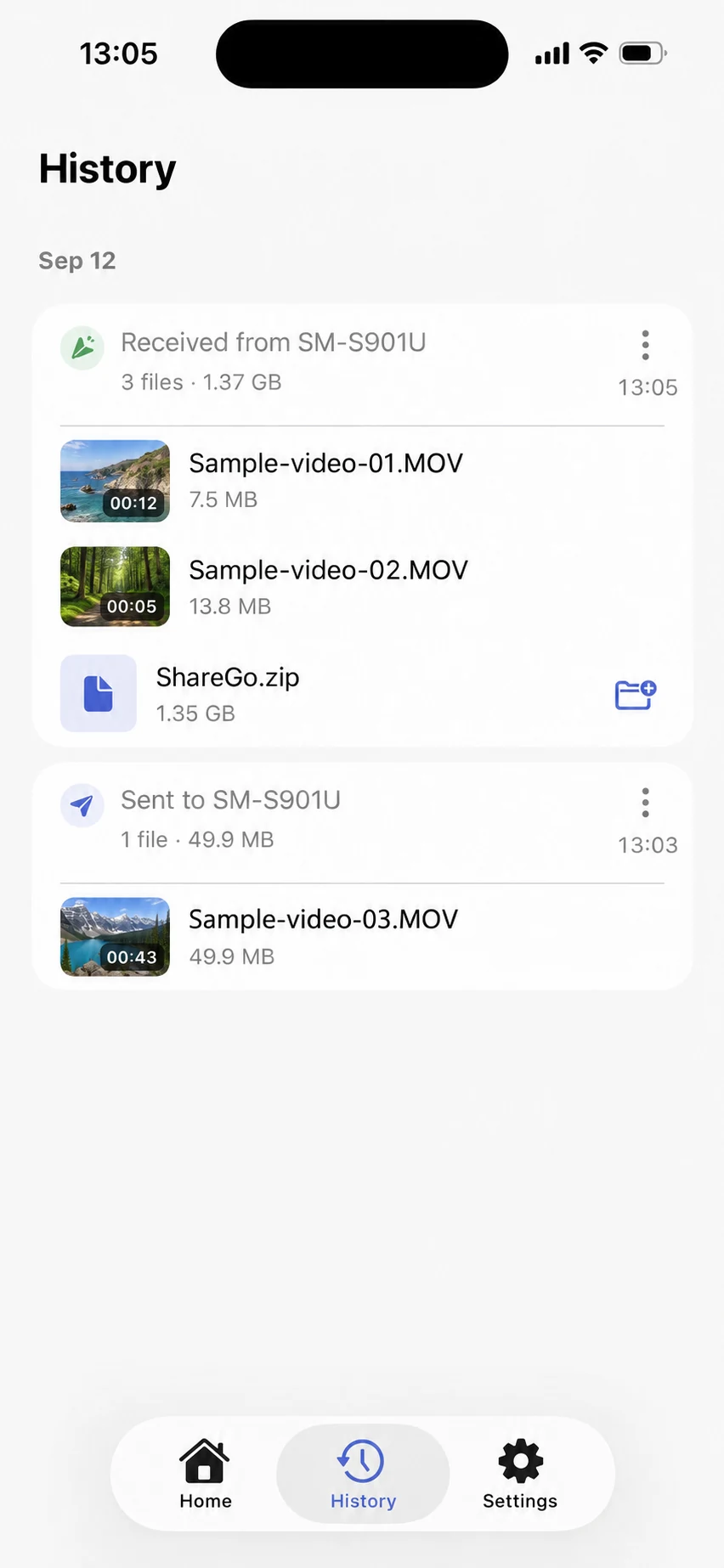
History groups received and sent files separately. Personal thumbnails and filenames have been replaced in this screenshot.
If neither the Photos import nor the fallback save succeeds, the item has not been saved successfully. Check its result and available space before retrying. Do not delete ShareGo to refresh the list: that can remove app-managed files.
Match the filename and transfer direction
Both people can send files during a ShareGo session. Make sure you are looking at a received entry on the right phone. A sent entry refers to the outgoing transfer, not a second local copy.
Use the filename, size, and transfer time to distinguish similar items. Open the file to confirm its contents. For a video, check playback, sound, and duration before deleting the source.
If the file is still missing
If the item is incomplete, follow the interrupted-transfer checks. If History reports success but the file will not open, contact support with the receiving phone model, app version, filename extension, and the result shown in History.
For a file missing from the selection screen before sending, see photos or files missing in ShareGo.
Based on a review of ShareGo’s implementation. Menus and available options can vary with your app and system version.
Our editorial approach·Report a correction