
To send a large video with ShareGo, select the clip on the sending phone, connect the two phones, and check the received copy before deleting the original. Android creates the local connection in either direction; the iPhone scans its code.
Before you start
Open ShareGo on both phones and enable Wi-Fi. Make sure the video is downloaded to the sending phone and the receiving phone has more free space than the video's file size. Temporary storage and media import can need extra room.
If the video comes from an editor, export the version you want to send first. A camera original, an edited video, and a copy saved from a message may differ in resolution, encoding, and file size.
Send from Android to iPhone
- On Android, tap Send and open the video category.
- Select the video, then tap Send to continue to the connection invitation.
- On iPhone, tap Receive and scan the Android phone's QR code inside ShareGo.
- Accept the system connection prompt. Keep both apps open while the video transfers.
- On iPhone, check the received entry in History and open the video. ShareGo tries to add received videos to Photos; if that fails, check its app storage.
For help with the connection prompts, follow the Android and iPhone transfer guide.
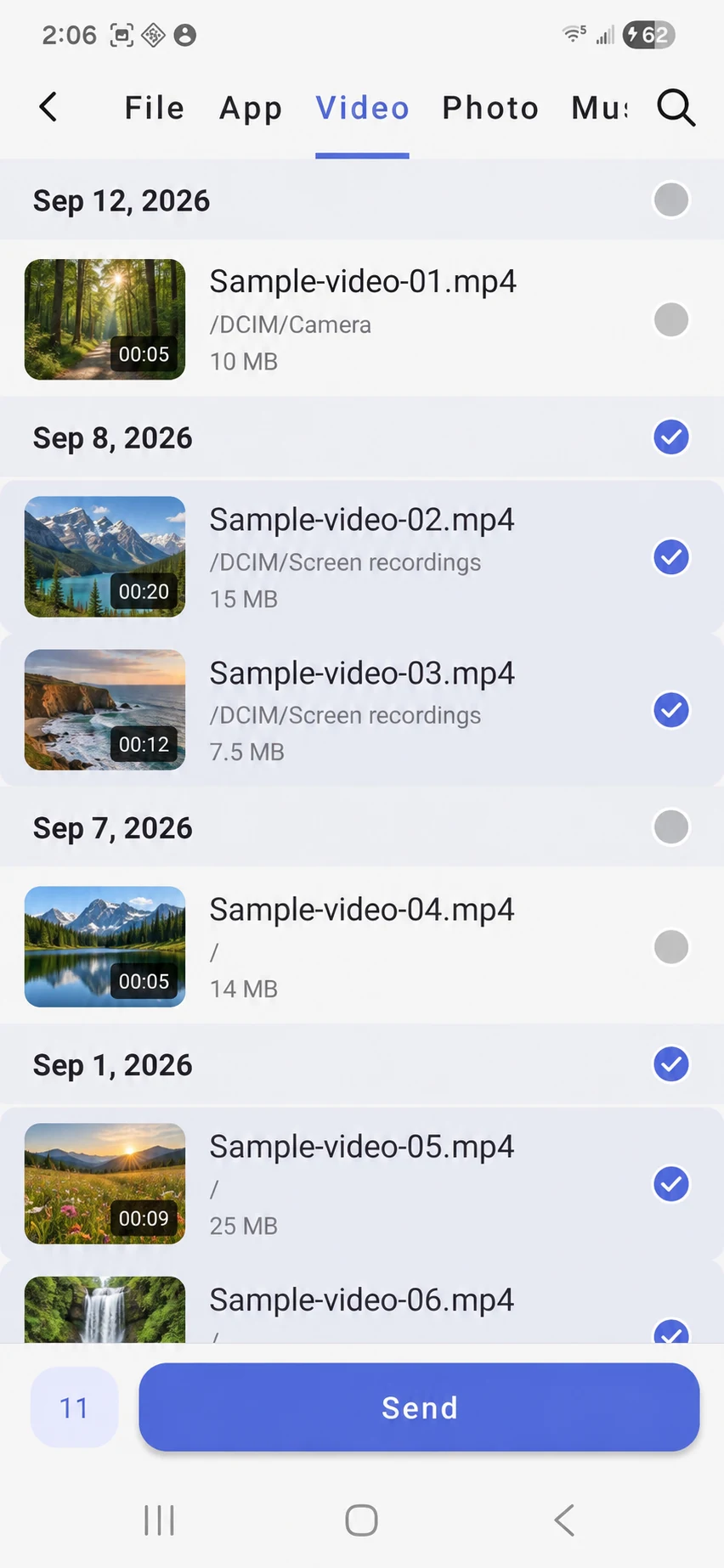
Checked circles mark selected videos. The bottom counter shows 11 selected items across the list; tap Send to continue. Landscape previews and sample filenames replace personal content.
Send from iPhone to Android
- On Android, tap Receive from iPhone/iPad and leave the invitation screen open.
- On iPhone, tap Send to Android, select the video, and continue to the scanner.
- Scan the code shown by the Android phone and complete the connection prompt.
- Keep both apps open until the transfer reports its result.
- On Android, open the received video from History, or find it in ShareGo/videos on the selected storage volume.
To send more videos after connecting, use Select Files in the session. For two Android phones, follow the Android-to-Android steps.
Keep the quality you need
Choose the source before you transfer it. If you want the camera recording, use that file rather than a smaller copy downloaded from a messaging app. If you want your edits, export them at the desired quality first.
The transfer cannot restore detail removed by an earlier export. A thumbnail also tells you little about the video's actual quality. On the receiving phone, compare duration, resolution, and file size where those details are available.
If the received video will not play
Check the format. For example, a phone or player may not support a particular HEVC video even though the file arrived. Apple's HEIF and HEVC guidance explains compatibility and export options.
Try a player that supports the format, or export a compatible version from the source app. Renaming a file from .mov to .mp4 does not convert it. Keep the original if you decide to make a converted copy.
If the transfer is slow or stops
Keep the phones close together and avoid changing Wi-Fi networks during the transfer. A large clip can take time to prepare before its transfer begins, and the receiving phone may need time to save it afterward.
If progress continues slowly, use the speed checks. If the transfer stops, check which items completed before retrying the interrupted transfer.
Once the video arrives, play it, check the sound, and seek near the end. See where received files go if it is missing from Photos or your gallery.
Based on a review of ShareGo’s implementation. Menus and available options can vary with your app and system version.
Our editorial approach·Report a correction