
If ShareGo does not list a file you want to send, check the selected category, storage access, and whether the full file is on the phone. On Android, ShareGo uses All files access on Android 11 and later. On iPhone, the Photos permission can limit which items appear.
This page covers files missing before sending. For an incoming transfer, see where received files go.
Check the category and original file
Open the appropriate tab in ShareGo: photos, videos, music, or files. Then check that the item still opens in the app or folder where you normally use it.
A document inside a messaging or editing app may need to be saved or shared out of that app first. Storage access does not let ShareGo read every other app's private files.
Allow file access on Android
On Android 11 and later, ShareGo uses All files access to browse shared storage. This is the system’s file-management permission, not the separate Photos and videos permission. Open Special app access to find it.
- Open ShareGo and tap Allow in its Storage Permission prompt.
- On the system All files access page for ShareGo, turn on Allow permission. Other phones may label the switch Allow access to manage all files.
- Return to ShareGo and reopen the file-selection screen.
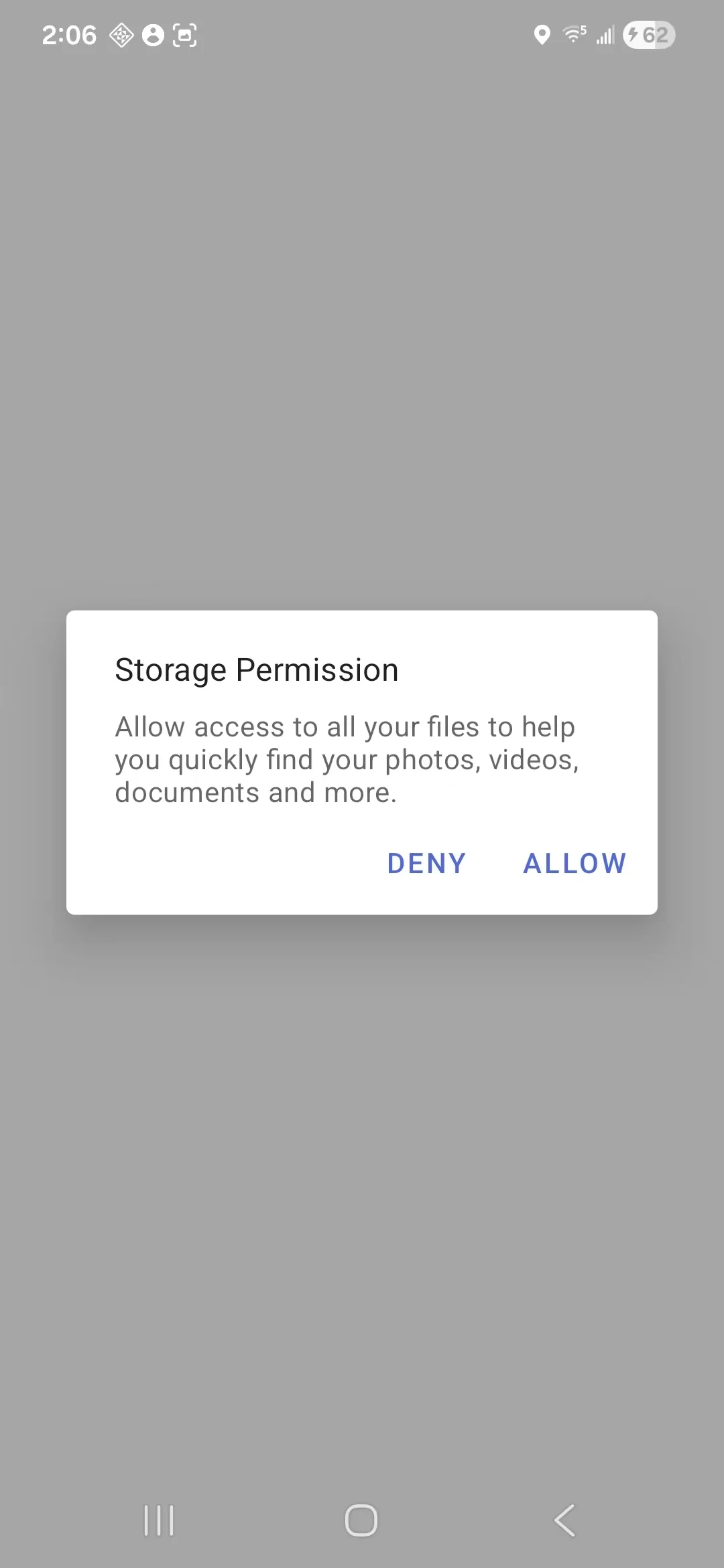
ShareGo explains why it needs file access. Allow opens the system permission page; this prompt alone does not grant access.
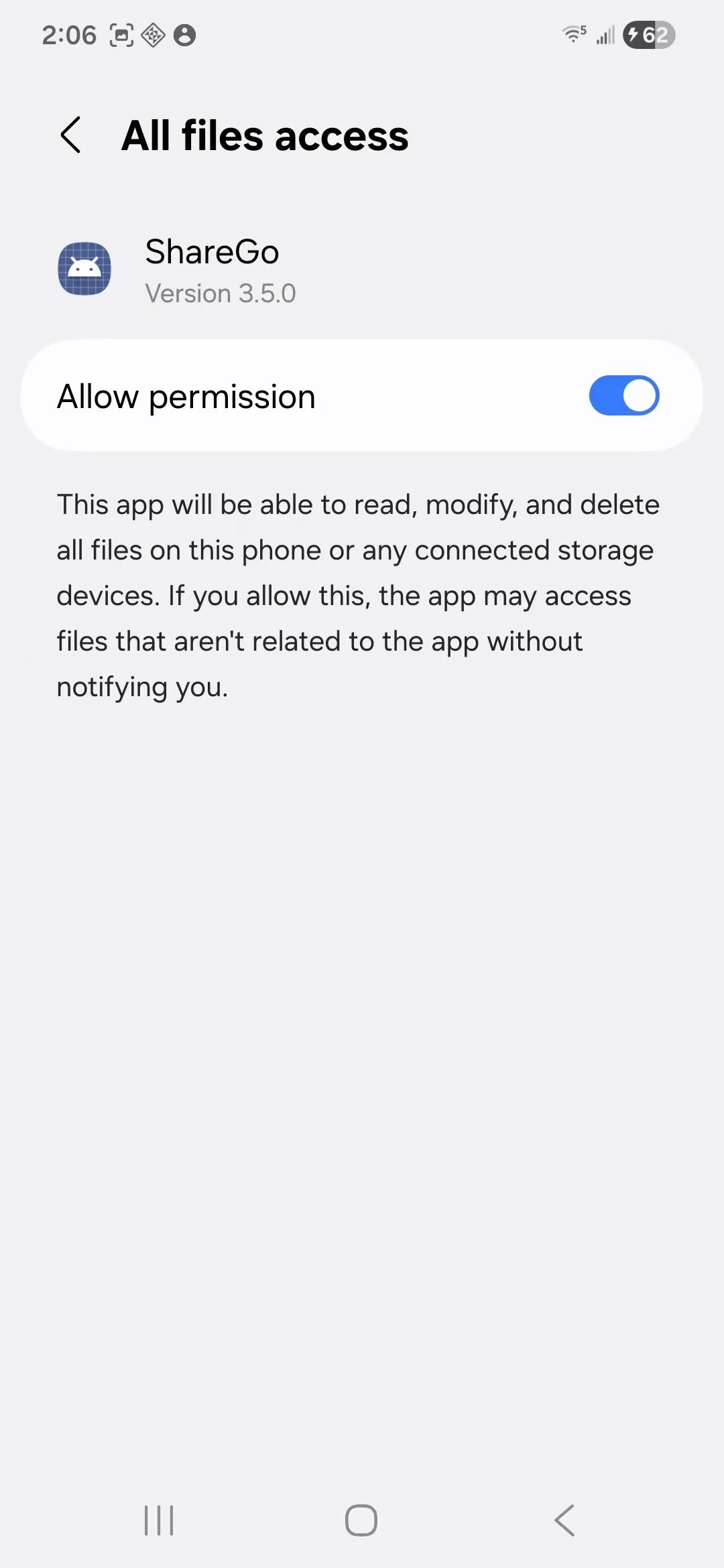
The system All files access page with Allow permission enabled for ShareGo.
If you dismissed the prompt, search system Settings for All files access. It is usually under Apps → Special app access; the route and wording vary by phone manufacturer. Select ShareGo to check its access.
On older Android versions, check the app's Storage permission instead. Google's app permission instructions cover those general settings. Its All files access documentation explains the separate permission used on newer versions.
Camera and Nearby devices permissions affect scanning and connecting. They do not replace file access.
Check Photos access on iPhone or iPad
Open Settings → Privacy & Security → Photos → ShareGo. If access is limited to selected photos and videos, add the item you want to share to that selection. You can also allow full library access if that is your preference.
Return to ShareGo and reopen the photos or videos tab. A file in another app or cloud provider may instead need to be selected through the document picker or shared into ShareGo.
Music has separate source restrictions. A track appearing in a subscription library does not necessarily mean it is available as an audio file that another app can export.
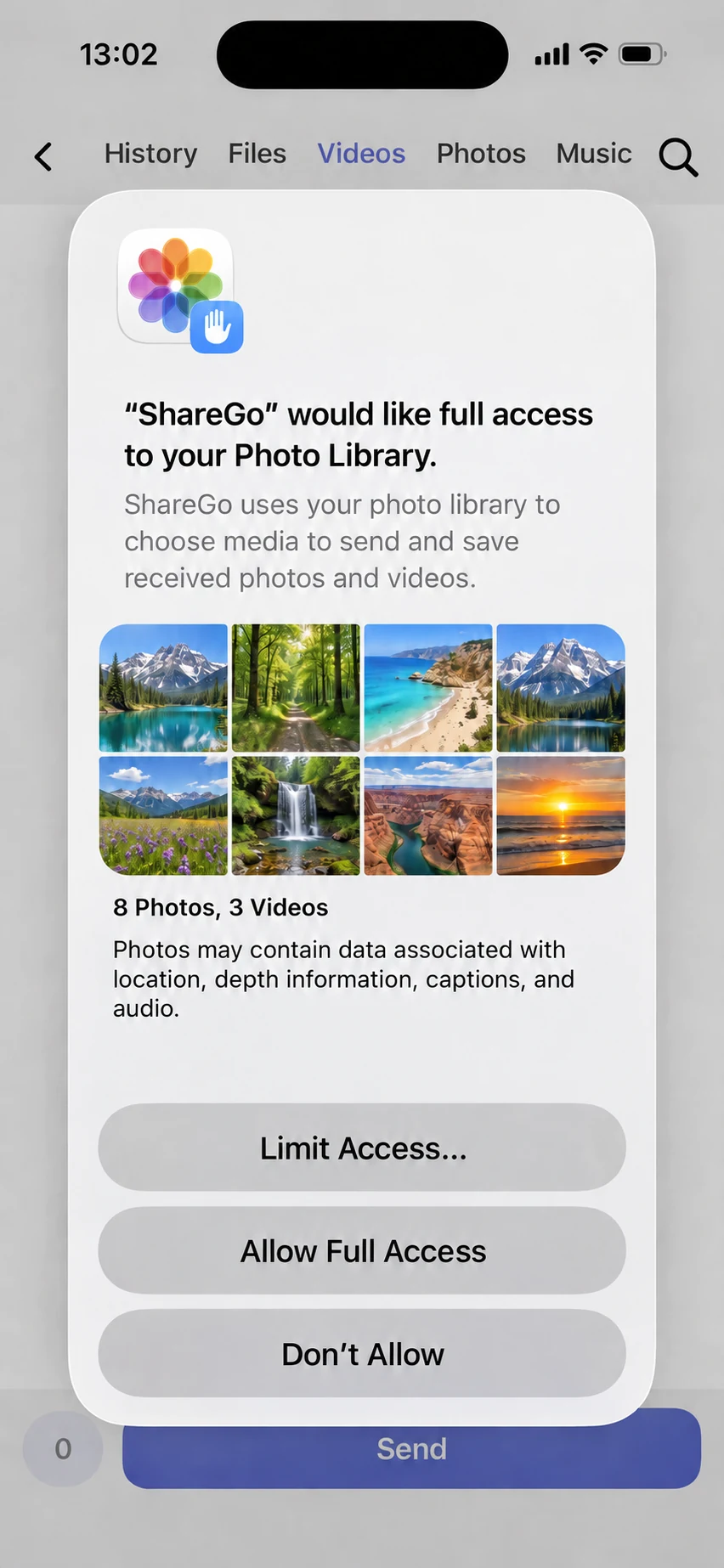
The initial Photos prompt offers limited access, full access, or no access. Personal previews and library counts have been replaced.
Download cloud-only items first
A thumbnail may be available while the full photo, video, or document is still in the cloud. Open the item in its source app and finish downloading it before starting the local connection.
ShareGo's iOS media listing checks for locally readable files. An item that is only in the cloud may be omitted until its source is available. Reconnecting the phones will not resolve a failed cloud download.
If only one file is missing
Try another file of the same type. If that appears, check the missing item's location, format, and availability in the source app. After changing access or importing a document, reopen the relevant ShareGo tab.
Avoid clearing app storage to refresh the list. If the problem persists, contact support with the file type, its source app or folder, and your phone and app versions. You do not need to attach the private file.
Based on a review of ShareGo’s implementation. Menus and available options can vary with your app and system version.
Our editorial approach·Report a correction