
To share files between Android and iPhone with ShareGo, install the app on both phones and choose the actions for the direction you want to send. The Android phone creates the connection in both directions. Which phone sends the files is a separate choice.
Before you start
Have both devices nearby, with Wi-Fi enabled and enough space on the receiving phone. Open ShareGo on both devices. On Android 11 and later, allow All files access for file selection. On iPhone, choose which photos and videos ShareGo can access. Follow the connection permission prompts on each phone and keep both apps open while you connect.
The Android and iPhone home screens have different actions because the phones play different parts in setting up the local network. Avoid choosing a generic receiving action on Android when the sender is an iPhone: use the option that explicitly mentions iPhone or iPad.
Send from Android to iPhone
- On Android, choose Send and select a small file to start with.
- Continue to the connection screen and leave the current QR code visible.
- On iPhone, choose Receive in ShareGo and scan that code inside the app.
- Follow any system prompt to join the connection. Return to ShareGo if the system takes you into Settings.
- Wait for the devices to show a connection, then follow the transfer screen. Check the result on the receiving phone before sending the rest.
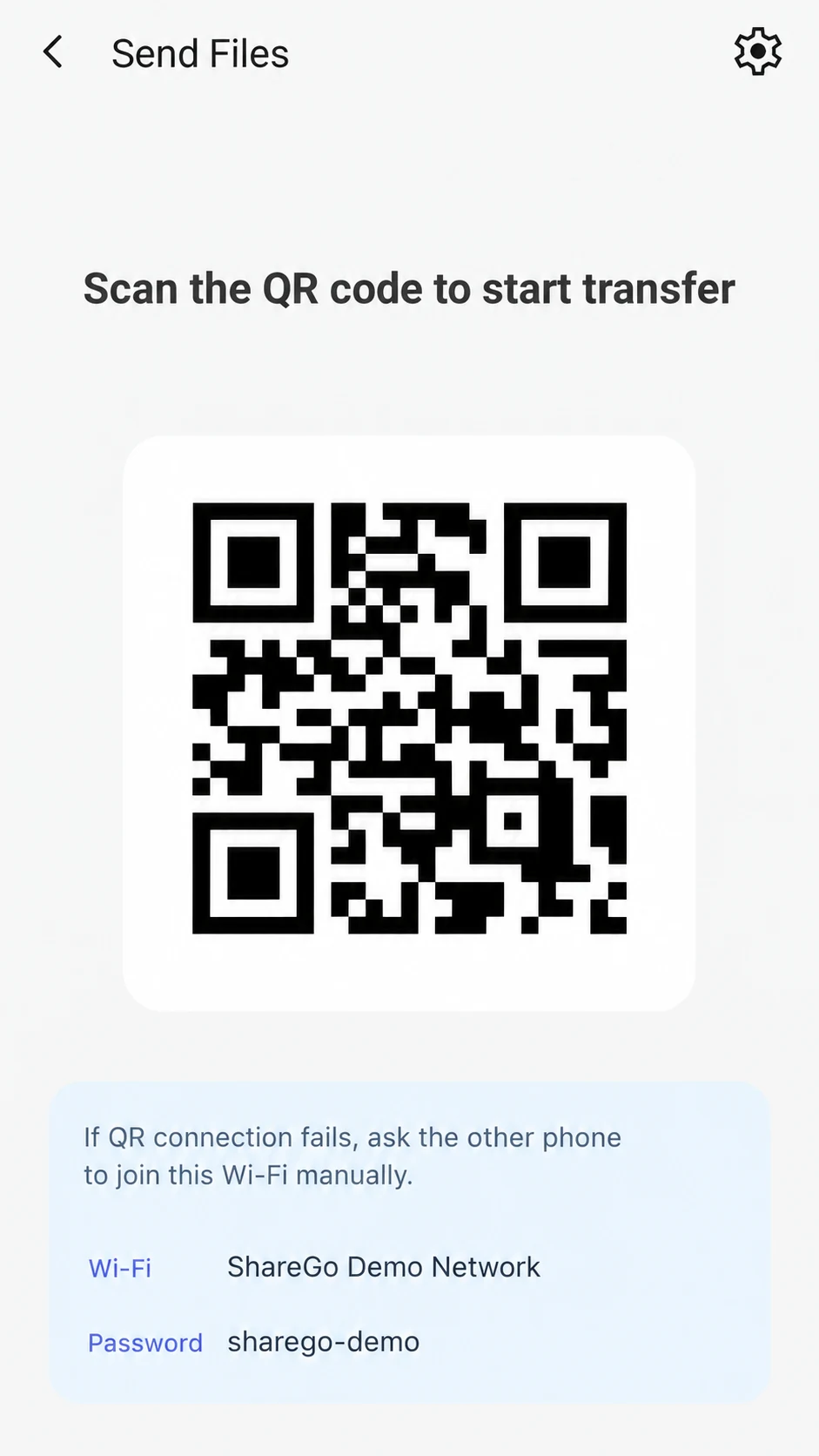
Android invitation example from ShareGo’s store artwork. Scan the code on the sending phone; the code and network details here are for illustration.
A camera successfully reading a code is only the first step. The phone still needs to join the network and establish the app session. If scanning works but connection does not, work through the QR connection checks.
Send from iPhone to Android
- On Android, choose Receive → From iPhone / iPad and leave the invitation screen open.
- On iPhone, choose Send → To Android and select the files.
- Continue to the scanner and scan the Android phone's code inside ShareGo.
- Complete the system connection prompt and return to ShareGo.
- Check the received files on Android when the transfer finishes.
The Android phone still creates the connection even though it is receiving the files. Do not switch to the Android sending action just to create a code: that changes the initial task. Follow the labels in your installed version if their wording differs slightly.
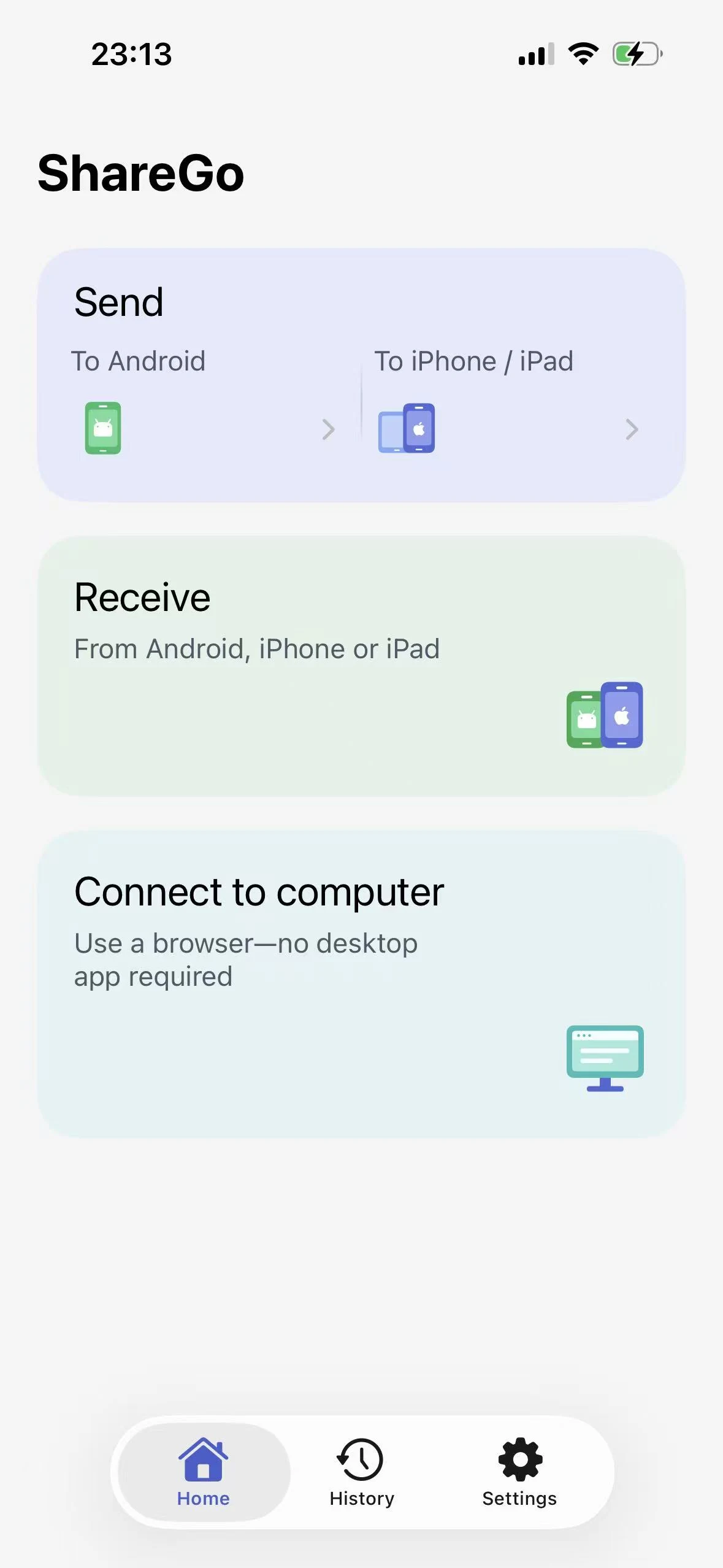
The updated iPhone home screen. Choose To Android on the left side of Send. The separate Connect to computer card is for browser-based computer sharing; use Send for this phone-to-phone transfer.
After connecting, ShareGo supports selecting and sending more content in either direction. You do not need to treat the initial sender as the only phone allowed to send during the session. Leave the session open until both people have finished.
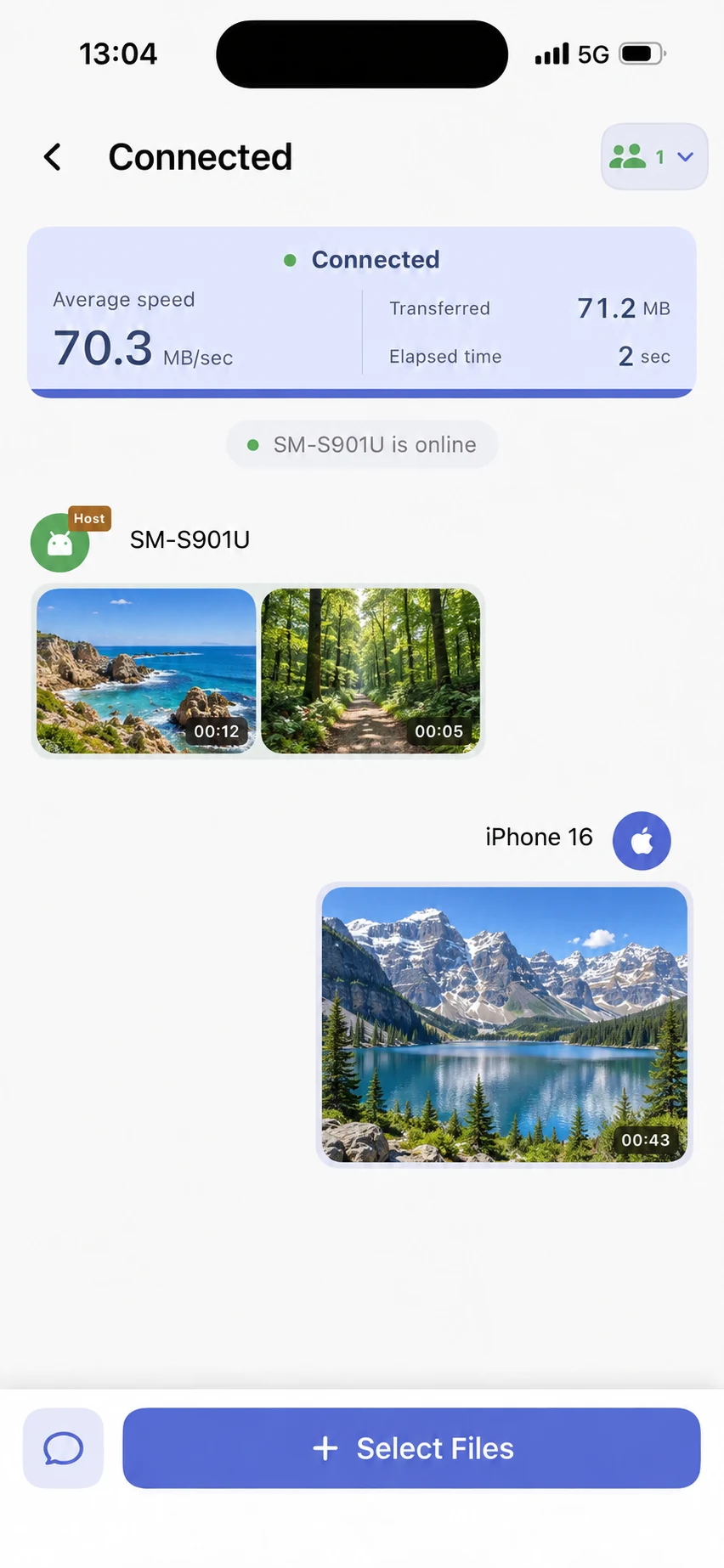
An iPhone session with videos sent in both directions. Select Files adds more items to the session. Landscape previews replace personal thumbnails; the displayed speed is from this capture, not a benchmark.
What can move across platforms?
Photos, videos, and files are the useful common ground. Being able to transfer a file does not mean the receiving platform can open it. An Android application package will not install as an iPhone app, and a media file may need a compatible player.
On iPhone, content availability depends on photo permissions, media access, and files you select or import. ShareGo does not get unrestricted access to every app’s private data. If something is missing before you send, see photos and files missing in the picker.
Finish by checking the receiving phone
Open the received file, rather than relying only on the sender’s completion display. Confirm that a video plays to the end and that documents open in a suitable app. Keep the original until you are happy with the result.
For where to look next, follow Find files received with ShareGo. If the connection itself is confusing, our local-network explanation separates network roles from sending and receiving.
Based on a review of ShareGo’s implementation. Menus and available options can vary with your app and system version.
Our editorial approach·Report a correction