
Wi-Fi is a way for devices to communicate; internet access is a separate capability a network may provide. Nearby file sharing needs a usable route between the phones. That route may use Wi-Fi Direct, a phone-created local hotspot, or a shared local network, depending on the devices and the app flow.
Wi-Fi Direct creates a peer group
Android’s Wi-Fi Direct APIs allow supported devices to establish a peer-to-peer group without requiring an existing access point. One device takes the group-owner role. That role helps organize the network; it does not mean that device must always be the one sending a file.
The available APIs and permissions depend on Android versions and device support. Google documents the connection model and requirements in Create P2P connections with Wi-Fi Direct. A feature described by the platform is not a promise that every pair of phones will use that exact route.
A local hotspot provides a connection to join
A phone-created hotspot can give another device a local network to join. In ShareGo’s Android connection architecture, a hotspot can also provide a fallback when the preferred connection route is not available.
The appearance of a network name and password does not by itself distinguish Soft AP from Wi-Fi Direct: an Android Wi-Fi Direct Group Owner can also accept conventional Wi-Fi clients. The Wi-Fi Direct vs Soft AP comparison explains that distinction and ShareGo’s host-side selection design.
Do not confuse a local connection created for nearby communication with a guarantee of internet tethering. The network may carry traffic between the phones without providing a route to the wider internet. A system “no internet” notice can therefore coexist with a useful local link.
A shared Wi-Fi name is not the whole story
Devices connected to the same router still need permission and a route to communicate with one another. Some guest or managed networks isolate clients. In that case, having the same network name does not establish that local peer traffic is allowed.
The app also needs its platform permissions. On Apple devices, Local Network access is distinct from access to photos or the camera. Allowing the camera to read an invitation does not itself grant every capability needed to complete the connection.
Network role and transfer direction are different
In ShareGo’s Android–iPhone flow, Android creates the connection even when the iPhone is sending. The iPhone joins that connection and sends its files to Android. This explains why the Android home screen has a receiving action specifically for iPhone and iPad.
Once the session is established, either peer can select and send additional content. The network does not need to reverse ownership simply because the next file travels the other way. See the cross-platform guide for the actual home actions.
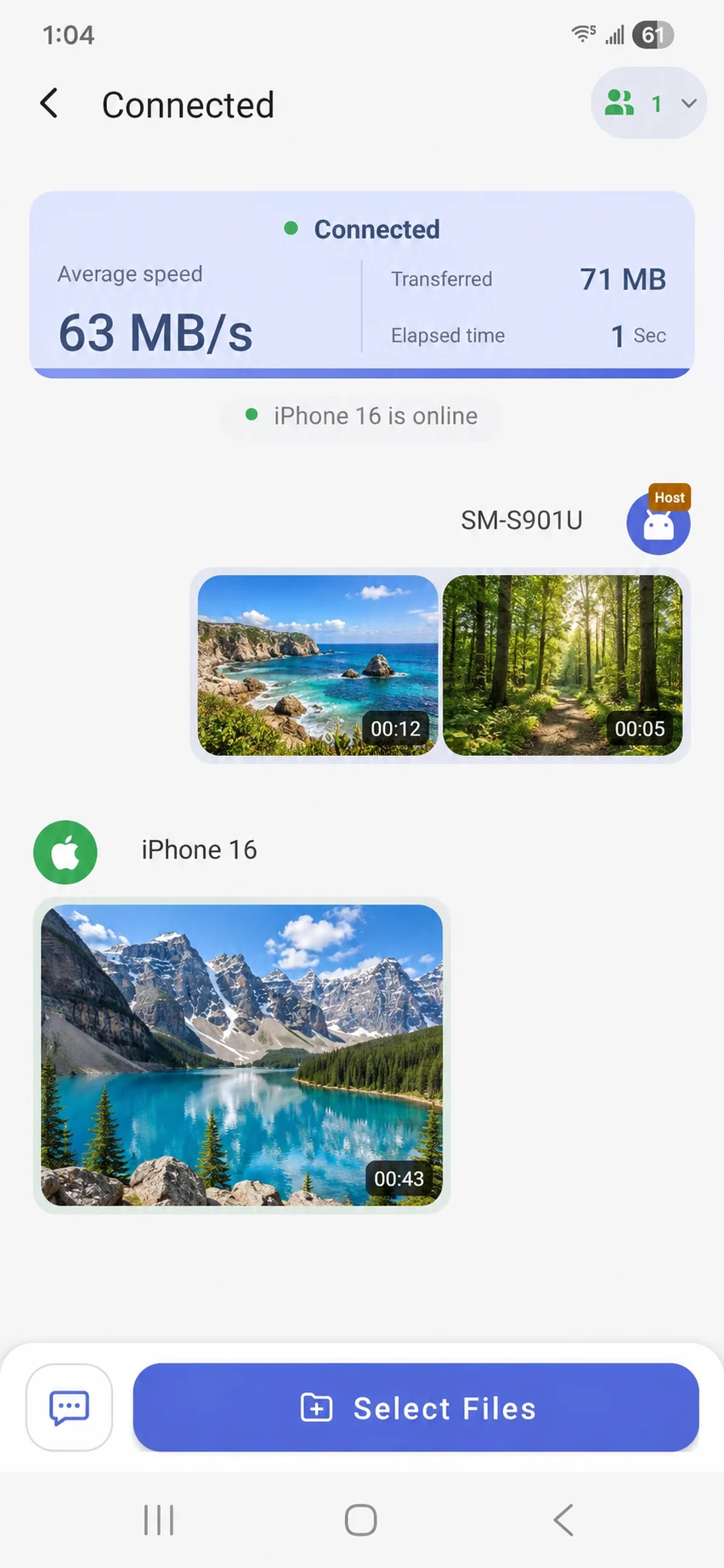
Android remains the host while sending and receiving videos in the same session. Landscape previews replace personal media. The speed shown is from this capture, not a benchmark.
An invitation starts a process
The code contains information the app needs to begin connecting. Reading it is not the same as joining the network, establishing the session, or completing a file transfer. Each stage can fail for a different reason.
Keep the current invitation screen open and follow the system prompts. Use a fresh code after restarting a session, rather than reusing an old image. If you know which stage stopped, the QR connection checks will be easier to follow.
For deciding whether a nearby handoff is the right approach at all, read local transfer versus cloud sharing.
Sources are linked alongside the explanations in this article. Menus and available options can vary with your app and system version.
Our editorial approach·Report a correction