
First identify where the process stops: before the QR code is recognized, while joining the connection, or after the devices appear connected. Those are different stages. Restart with a current invitation and the correct receiving action before changing several phone settings at once.
Check the actions on both phones
For Android to Android, the sender chooses Send and the other phone receives from Android. For Android to iPhone, Android shows the sending invitation and iPhone uses Receive. For iPhone to Android, Android chooses Receive from iPhone/iPad and still creates the invitation.
If both phones are waiting to scan, neither is showing the connection invitation. If both show codes, go back and choose the matching actions. The Android–iPhone guide explains the directional difference.
If the camera cannot read the code
Use the scanner inside ShareGo. Grant camera access if requested. Keep the entire code in view, clean the lens, and adjust distance until the camera can focus. Reduce reflections on the other phone’s display and avoid scanning from an angle.
Use the code shown by the active session on the other phone. A screenshot forwarded from an earlier session may contain connection information that is no longer usable. Close the unsuccessful flow and create a fresh invitation on the phone you are actually connecting to.
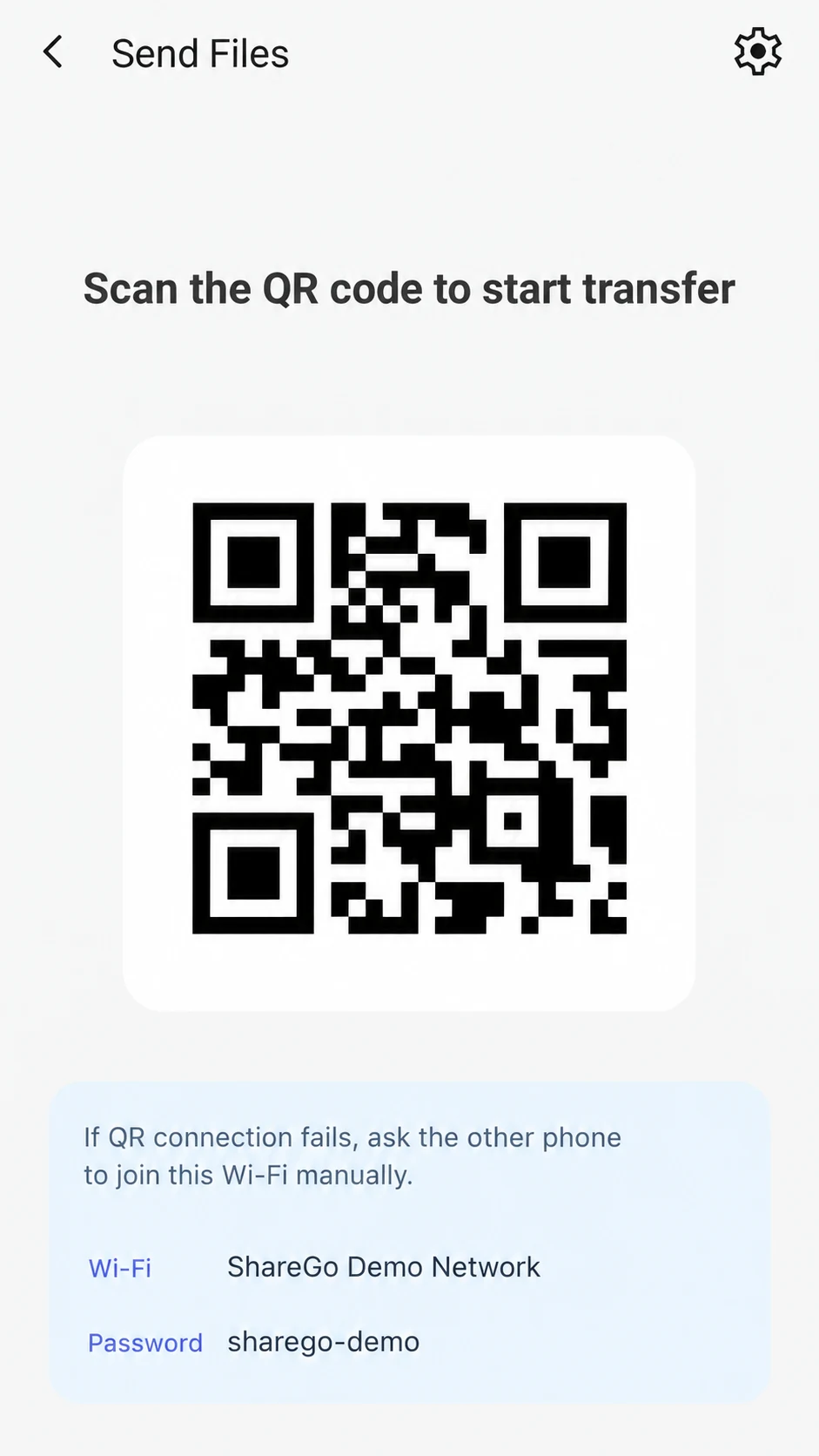
Invitation example from ShareGo’s store artwork. Use the current code and Wi-Fi details shown on the other phone, not those in this illustration.
If the code is read but connection stalls
Leave the invitation screen open and complete the system connection prompt on the scanning phone. Check that Wi-Fi is enabled. A local network can be usable for sharing even when the system warns that it has no internet connection.
On iPhone or iPad, open Settings → Privacy & Security → Local Network and check that ShareGo has access. Return to the app and try connecting again. Apple explains this setting in its Local Network instructions. On Android, check the connection permissions requested by ShareGo; Google’s permission instructions show how to reopen app settings.
Changing Wi-Fi to another network while connecting can abandon the network the invitation describes. Return to ShareGo after any required Settings step and wait for the app’s connection result.
Restart one clean attempt
Back out of the failed session on both phones. Start the correct flow again, create a new code, and make one connection attempt. Avoid repeated scans while the first attempt is still joining: that makes it harder to tell which invitation and connection state you are observing.
If a VPN or managed-device policy restricts local access, test only on a network and device configuration you are allowed to change. Do not disable organization-managed security controls to force a connection.
Know when to switch troubleshooting paths
If the phones show connected and a file starts moving, scanning is no longer the main issue. Use transfer stopped or disconnected for interruptions, or slow local transfer for speed.
For a repeatable connection failure, contact support with both phone models, system versions, app versions, chosen home actions, and the stage that fails. Do not send a live QR code, hotspot password, or other connection credentials.
Based on a review of ShareGo’s implementation. Menus and available options can vary with your app and system version.
Our editorial approach·Report a correction