
Local transfer speed depends on more than Wi-Fi. The sending phone must make each file available, the network must carry it, and the receiver must write and sometimes import it. First identify which stage is taking time; a faster internet plan does not automatically speed up a local transfer.
Check where the delay occurs
| What you see | What to check |
|---|---|
| No bytes sent yet | Open the source file and check that any cloud download has finished. |
| Bytes are increasing slowly | Bring the phones closer, keep the connection unchanged, and pause other large transfers. |
| Bytes have reached the total but the item is unfinished | Check the receiving phone's final result and free storage; it may still be saving or importing. |
| The same file repeatedly fails | Use the interrupted-transfer checks rather than treating it as a speed issue. |
Separate preparation from transmission
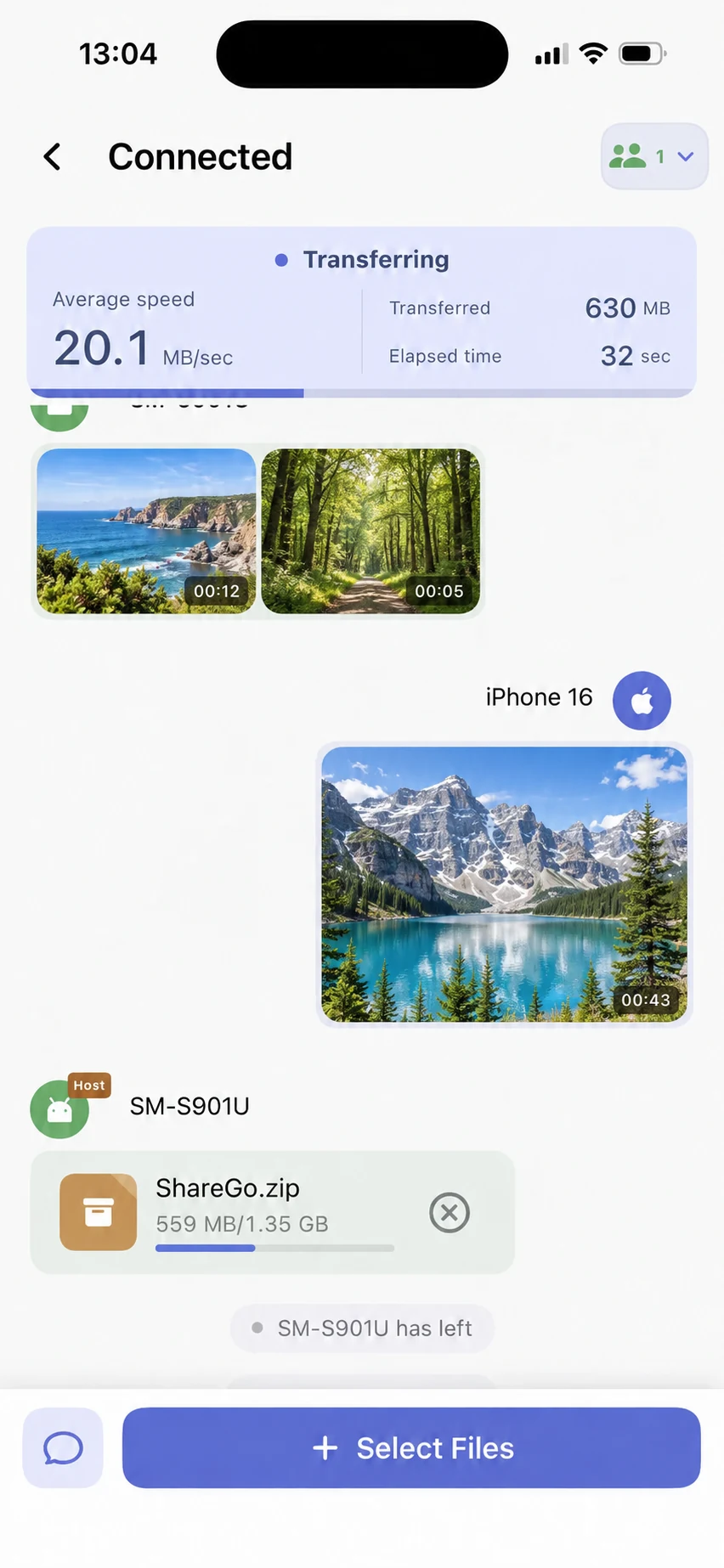
The iPhone transfer panel shows average speed, transferred bytes, and elapsed time. These numbers describe this capture, not an expected speed for every transfer. Landscape previews replace personal thumbnails.
A photo library or another app may need time to export the selected content before it can be sent. A source that exists only in a cloud library also needs to be downloaded first. Watch whether the operation is preparing a file or actively transferring it.
If the first item takes longer than the next few, avoid treating that one delay as the connection’s sustained speed. Start with a file already stored locally and compare the same type of operation.
Compare a single file with a collection
Many small files introduce repeated selection, metadata, opening, and saving work. They can take longer than one large file with the same total size. A group of photos and a single video are therefore not interchangeable speed tests.
For a useful comparison, keep the devices, network, app versions, and file selection the same. Record when you started and when the receiver finished saving. Do not report only the highest momentary number shown during transmission.
Improve the conditions you can control
Place the phones near one another, leave the apps in the foreground, and keep the connection unchanged. Avoid running another large local transfer at the same time. If a phone is unusually hot, let it return to normal operating conditions before repeating the test.
A hotspot or Wi-Fi Direct link does not guarantee one fixed radio speed. Distance, interference, device capabilities, and the route selected by the phones can all matter. The network guide explains why the connection type and the file’s direction are different concepts.
Check the receiving side
Slow storage or a nearly full destination can affect the end of the operation. A media item may also need a separate import step before it appears in the gallery. Check whether the bytes have finished moving but the receiver is still saving or importing.
Do not delete the original or disconnect just because a visible counter has reached its total. Wait for the final result, then open the file. If the file is present in ShareGo but not in Photos or another gallery, use the received-files guide.
Make a report that can be compared
Record both phone models, system and app versions, the file count and sizes, whether the files were local before sending, and the total elapsed time. Note whether you used the same conditions on each attempt.
When comparing two attempts, use the same phones and files. Note whether the delay occurs before the transfer, while bytes are moving, or while the receiver saves the file. If the transfer stops rather than simply progressing slowly, switch to interruption troubleshooting.
Based on a review of ShareGo’s implementation. Menus and available options can vary with your app and system version.
Our editorial approach·Report a correction