
Start with Send on the Android phone that has the files and Receive from Android on the other phone. Select your content, create a current invitation, and scan it in ShareGo on the receiving phone. Keep both apps open until the transfer completes.
Prepare the phones
Open ShareGo on both phones, enable Wi-Fi, and keep them nearby. Follow any storage-access prompt; on Android 11 and later, ShareGo uses All files access. See file-access settings if files are missing from the picker. Check that the receiving phone has enough free space, including room for temporary files.
ShareGo may ask for permission to find or connect to nearby devices. The wording depends on the Android version. Older versions can associate Wi-Fi discovery with location permission; newer versions may show a Nearby devices permission. Follow the app’s permission screen rather than changing unrelated settings. Google explains how to review app permissions.
Select and send a first file
- Choose Send on the source phone.
- Open the appropriate content category and select one small photo or document.
- Continue until the phone shows its connection invitation.
- On the other Android phone, choose the Android receiving action and scan the invitation in ShareGo.
- Complete any connection prompts. Let the transfer screen report the result.
- Open the received file on the second phone.
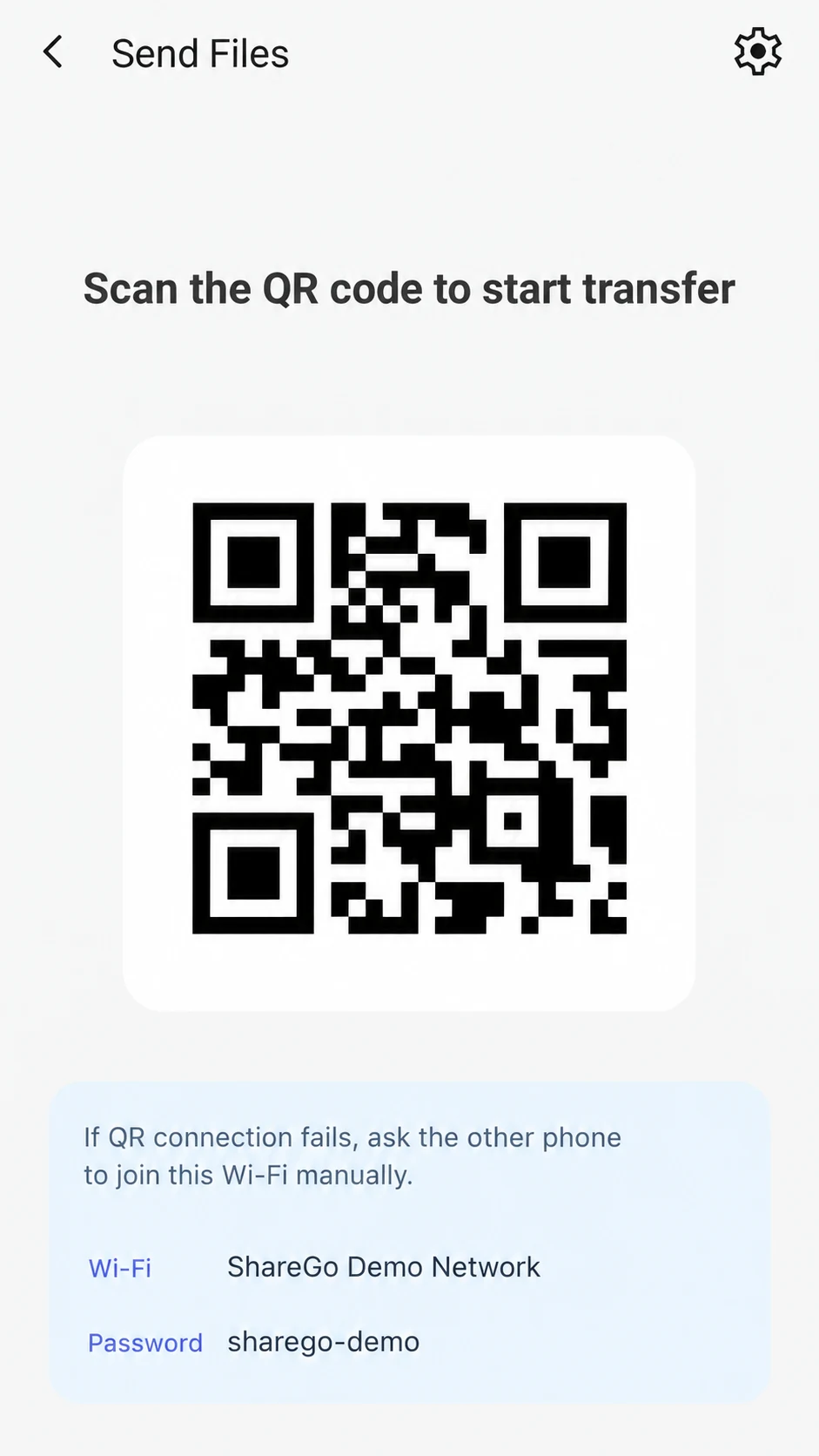
Invitation example from ShareGo’s Android store artwork. The receiving phone scans the code displayed in the sender’s app; the details here are examples.
A small first file helps separate a connection problem from the time needed to prepare a large collection. Once that file arrives, select the rest of your content. A saved screenshot of an old connection code is not a substitute for the code from the active session.
Keep sharing in the same session
The first choice of Send or Receive starts the conversation between the phones. It does not permanently restrict the direction of sharing. ShareGo allows either peer to select and send additional content after connecting.
Wait for the current operation to settle before disconnecting. If both people are exchanging files, check the transfer list on each device so that a completed item in one direction is not confused with an unfinished item in the other.
Understand the local connection
The phones need a usable local connection, but the phone creating it does not need to send files through a cloud drive. Depending on the devices and connection flow, Android can use Wi-Fi Direct or a local hotspot fallback. See Wi-Fi Direct, hotspots, and local Wi-Fi for the distinction.
A system message that a network has no internet access does not by itself mean local file transfer is unavailable. Stay with the connection requested by ShareGo while you finish the task. Do not change Wi-Fi networks midway through a transfer.
If the transfer does not finish
If the phones never connect, start with QR code connection troubleshooting. If they connect and then stop, use the interrupted-transfer checks. Avoid clearing app storage as a first troubleshooting step: it can remove information or files you still need.
After a successful transfer, use ShareGo’s history and file views to locate the result. Keep the source copy until you have opened the received file and verified the content you intended to share.
Based on a review of ShareGo’s implementation. Menus and available options can vary with your app and system version.
Our editorial approach·Report a correction